Troubleshooting Guide for BLACK X Wi-Fi Bridge
Having trouble with your BLACK X Wi-Fi Bridge? The steps below cover the most common issues with setup, pairing, and remote access.
For full installation instructions, refer to the installation guide.
Setup & Installation Issues
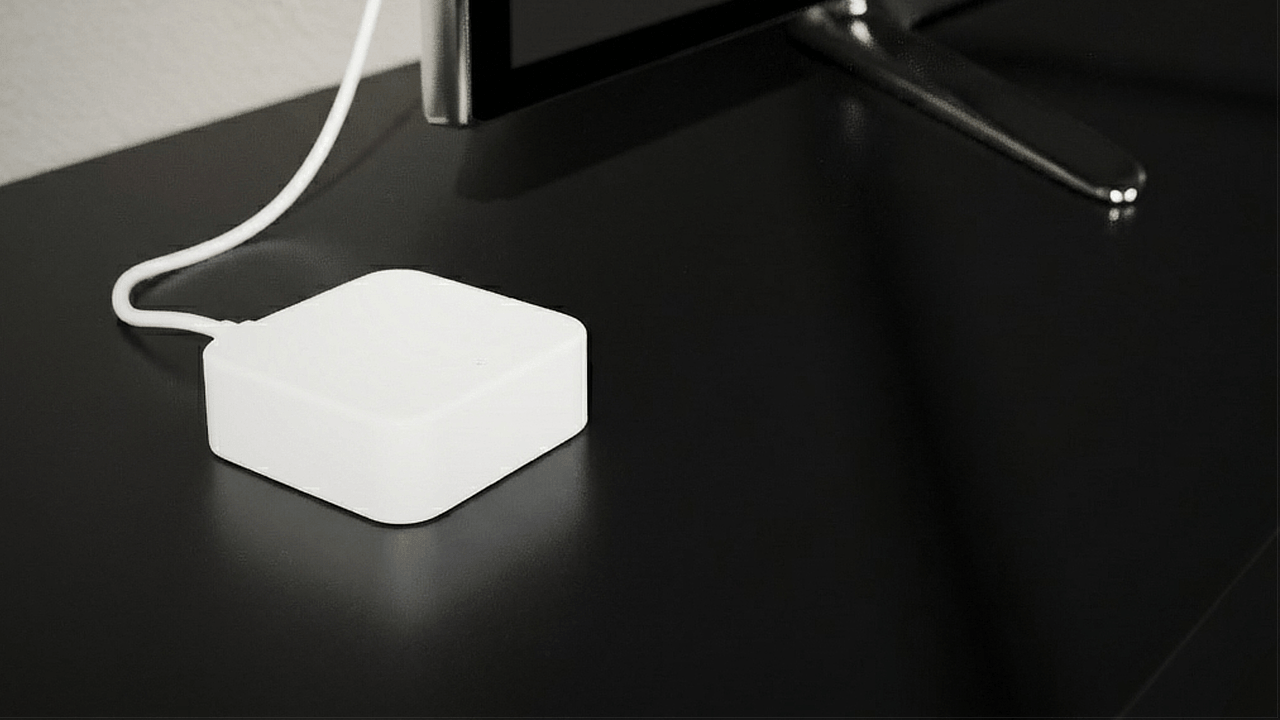
Wi-Fi Bridge does not power on
Possible cause
The Wi-Fi Bridge may not be receiving power, due to a loose cable connection, a missing power adapter, or a faulty outlet.
Solution
- Ensure the Type-C USB cable is properly connected to the Wi-Fi Bridge and plugged into a power source (Step 3).
- A USB power adapter is not included in the box. Use a compatible USB power adapter of your own (Step 1).
- Try a different power outlet to rule out an issue with the power source.
Understanding the light indicators
- Red and blue flashing: standby mode, ready to pair.
- Red only: network failure or timeout.
- Blue flashing: pairing in progress, or successfully activated.
Pairing & Connectivity Issues
The Wi-Fi Bridge is not pairing with the BLACK X app
Possible cause
The Wi-Fi Bridge may not be in pairing mode, or the app may not have Bluetooth access.
Solution
- Confirm the Wi-Fi Bridge is in pairing mode - the indicator light should flash red and blue (Step 2).
- Complete pairing promptly - the connection window lasts about 3 minutes. If it expires before pairing finishes, the indicator turns solid red.
- If the indicator flashes red, unplug the Wi-Fi Bridge, wait for the lights to turn off completely, and reconnect it (Step 3).
- Ensure your smartphone's Bluetooth is turned on before attempting to pair again.
The Wi-Fi Bridge does not connect to the home Wi-Fi network
Possible cause
The selected network may be unsupported, the Wi-Fi password may be incorrect, or the Wi-Fi Bridge may be out of range of the router.
Solution
- Select a Wi-Fi network that supports 2.4 GHz. 5 GHz networks are not compatible.
- Confirm the Wi-Fi password is entered correctly in the app - copying and pasting it is faster and more reliable than typing it.
- Enter the password promptly: the connection window lasts about 3 minutes, and entering it too slowly can cause the window to expire and the indicator to turn red.
- Keep the Wi-Fi Bridge within 7 meters of the router.
- If the app displays "Initialization Failed," restart the router and attempt the connection process again.
- If the indicator flashes red, unplug the Wi-Fi Bridge, wait for the lights to turn off completely, and reconnect it to reset pairing mode.
- If the connection remains unstable on a non-fiber connection (DSL, cable, etc.), your router may be combining the 2.4 GHz and 5 GHz bands under one network name. For a more stable connection, ask your internet provider to configure two separate network names - one for 2.4 GHz and one for 5 GHz - and connect the Bridge to the 2.4 GHz-only network specifically.
Refer to Steps 3 and 4 of the installation guide for detailed instructions.
Remote Access Issues
The smart lock does not respond to remote commands
Possible cause
The Wi-Fi Bridge may be powered off, out of range of the lock, disconnected from the home network, or remote access may not be activated in the app.
Solution
- Ensure the Wi-Fi Bridge is powered on and properly connected to your home Wi-Fi network.
- Verify that the Wi-Fi Bridge is within range of your BLACK X smart lock.
- Check the Wi-Fi connection indicator in the BLACK X app, on the home page of your smart lock - it should be green. Note that this indicator can take up to about 10 minutes to update after the Bridge actually disconnects, so a green indicator doesn't fully rule out a very recent connection drop.
- Confirm remote access is activated: open the app, go to your BLACK X lock settings, and turn on remote unlock.
Test remote functionality by stepping outside your home Wi-Fi range and using the BLACK X app to unlock your door. Refer to Step 5 of the installation guide for detailed instructions.
General Troubleshooting & Resetting the Wi-Fi Bridge
The indicator light on the Wi-Fi Bridge stays red
Possible cause
The Wi-Fi Bridge has lost network connection or timed out during pairing.
Solution
- Unplug the Wi-Fi Bridge, wait for the lights to turn off completely, and reconnect it to reset pairing mode (Step 2).
- If the issue persists, restart your router and attempt to reconnect the bridge to the network (Step 4).
If you're still experiencing issues after following this guide, contact BLACK X Support.
Looking for more?
Our assistant can help refine your search, or you can reach our support team directly.