How to activate Titan Smart Folding Lock?
The BLACK X Titan RockSolid U-Lock combines reinforced security with smart access control. This installation guide will help you set up your lock quickly and correctly. Follow the step-by-step instructions below to get your RockSolid U-Lock ready for everyday use.
Step 1: Unbox and Prepare Components
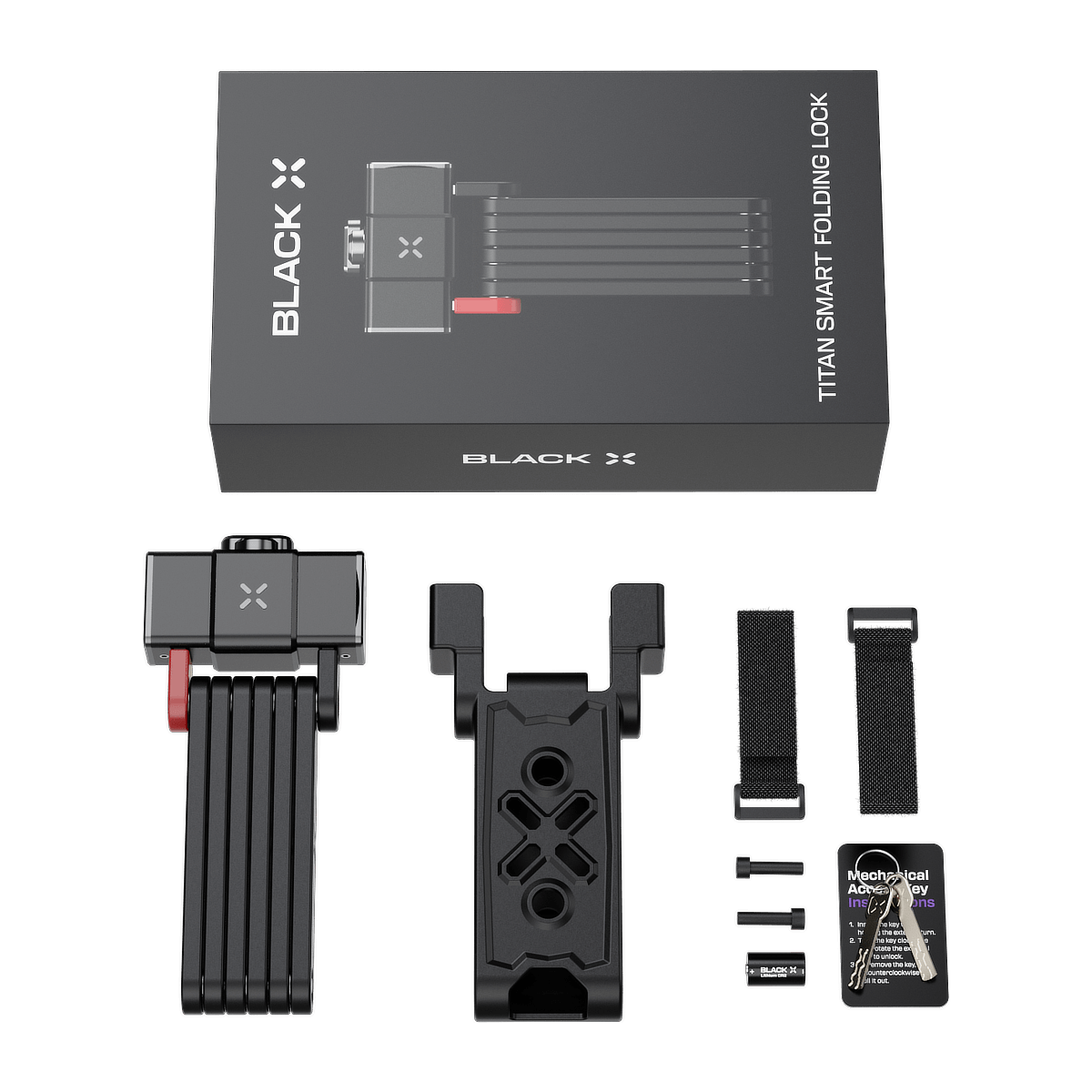
Included in the Box
1x Titan Smart Folding Lock
1x Pairing Tool
1x CR2 Battery
1x Allen Key
1x Mounting Bracket
1x Bracket Straps
2x Screws
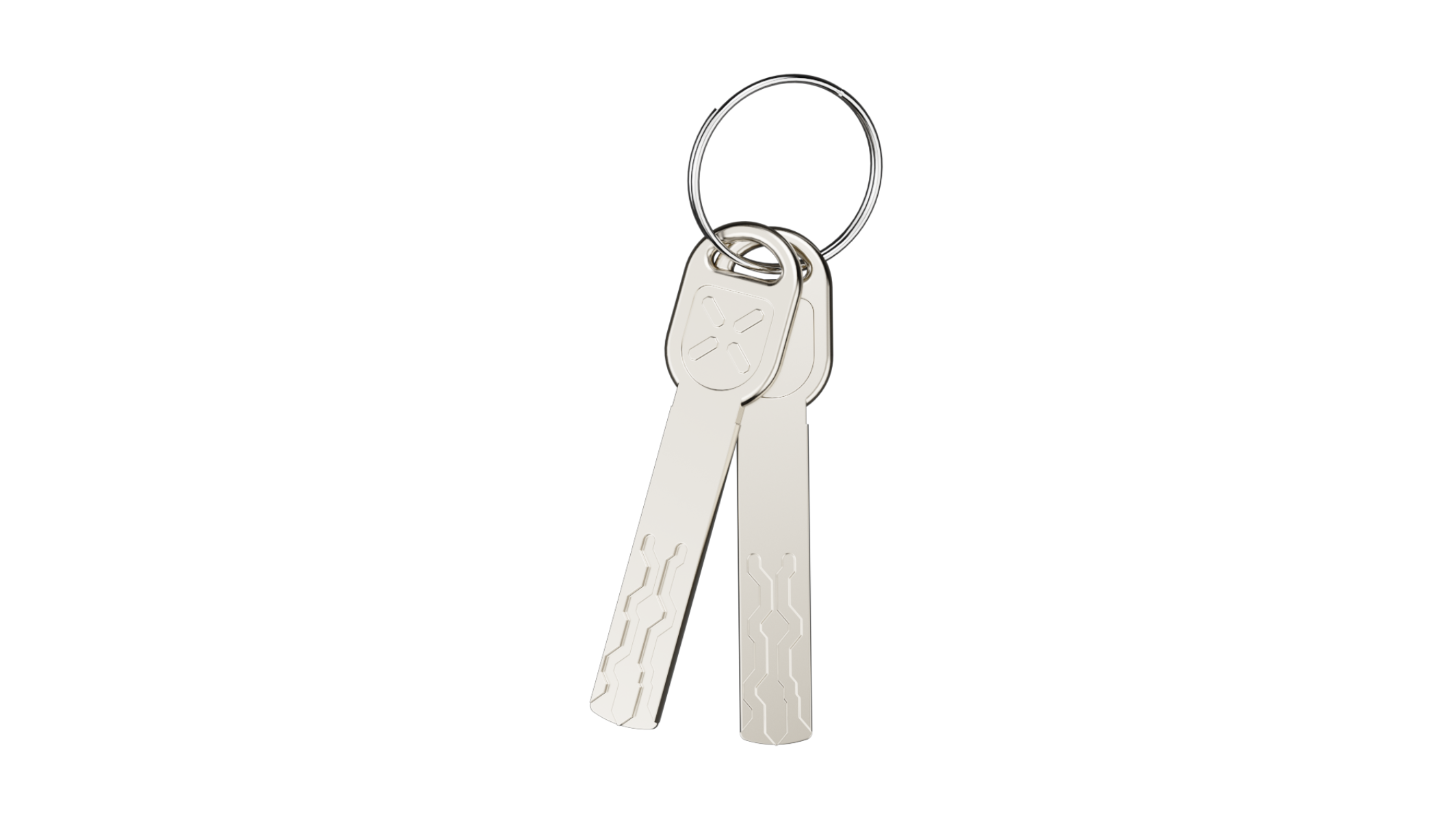
2x Mechanical Keys
Step 2: Prepare for Activation
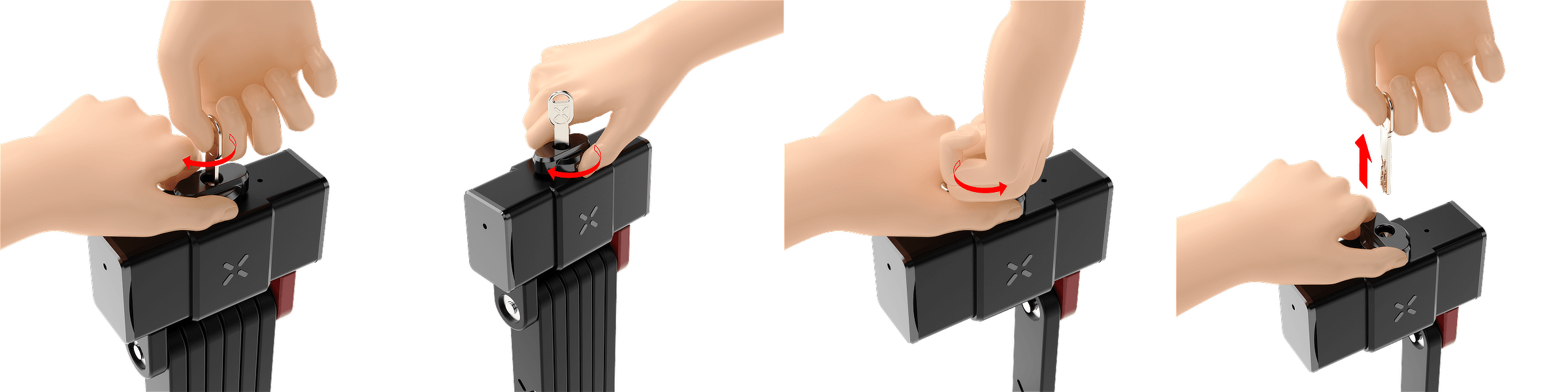
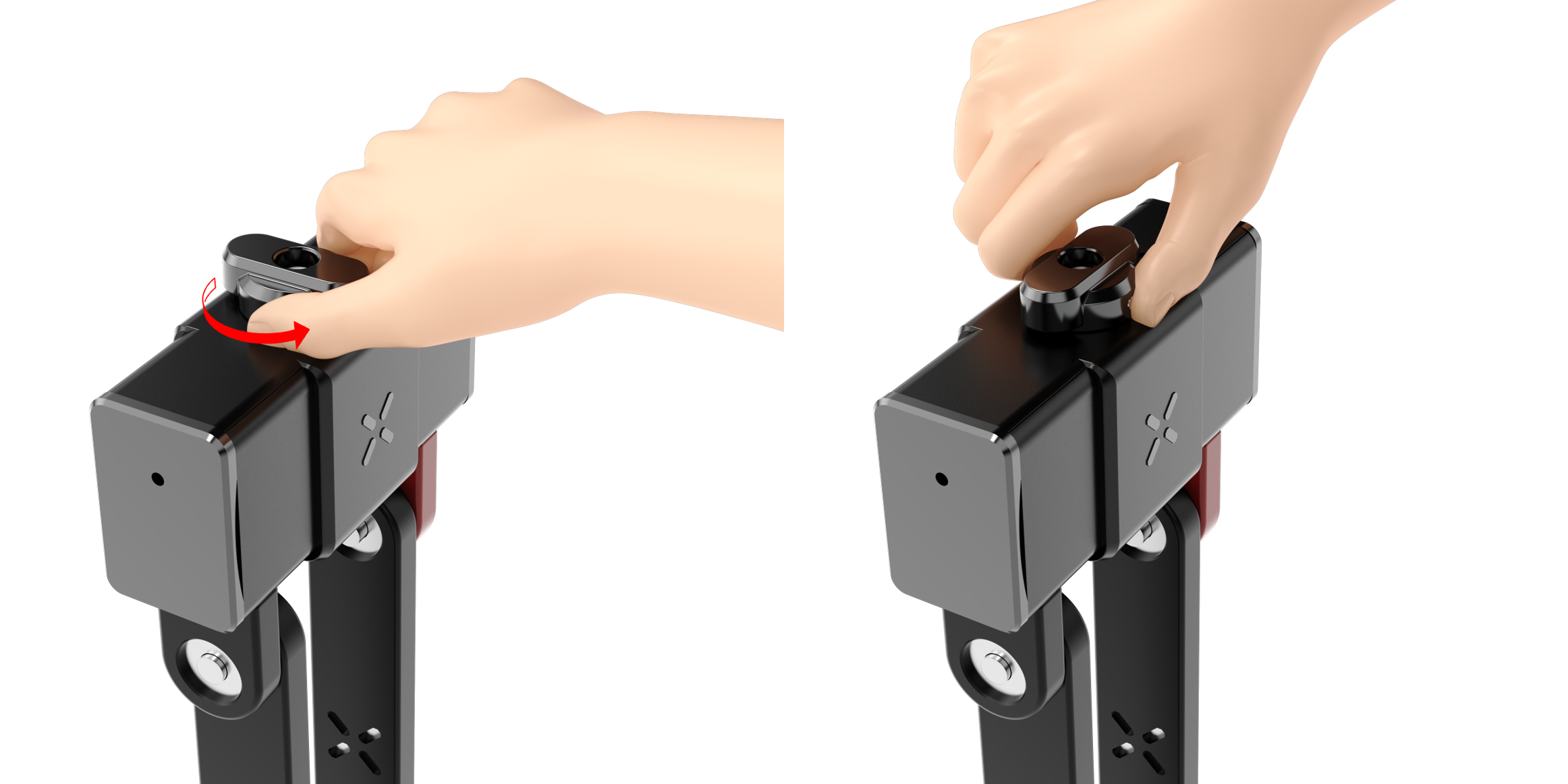
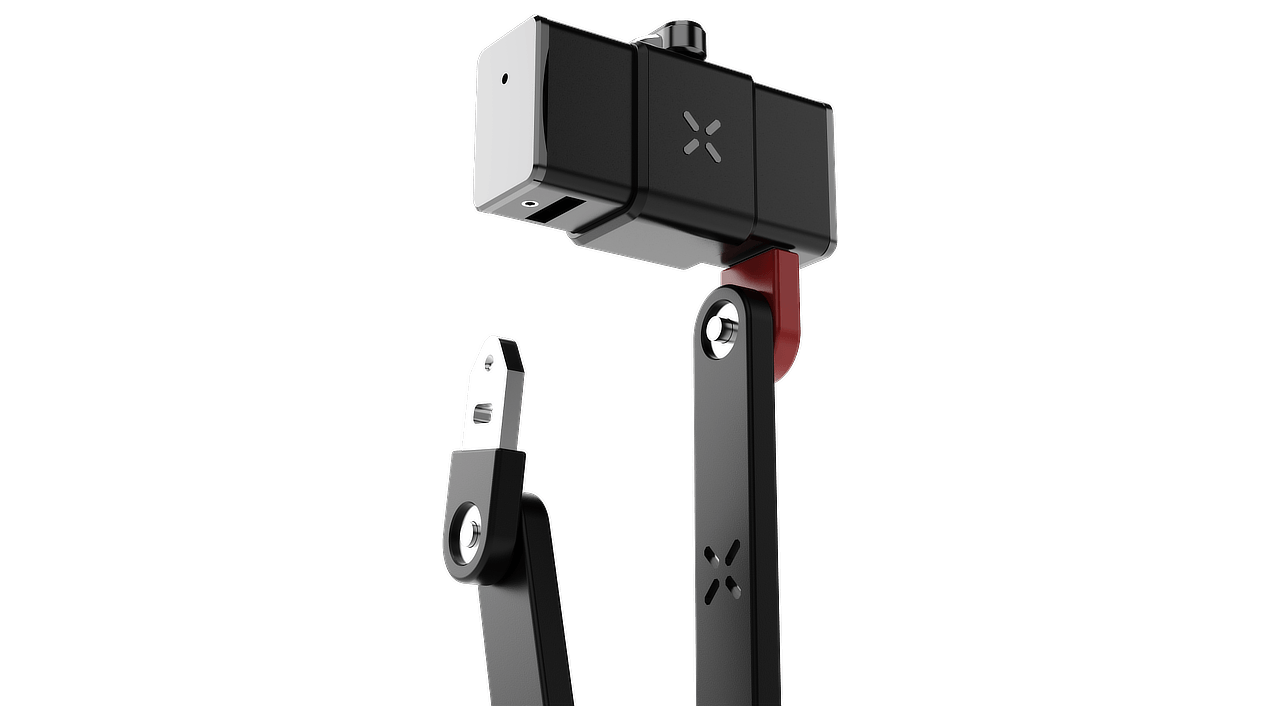
1. Unlock the folding arm: Insert the mechanical key into the cylinder and hold the knob firmly while turning the key clockwise. Turn the knob clockwise to open the lock. Then, turn the key counterclockwise and remove it.
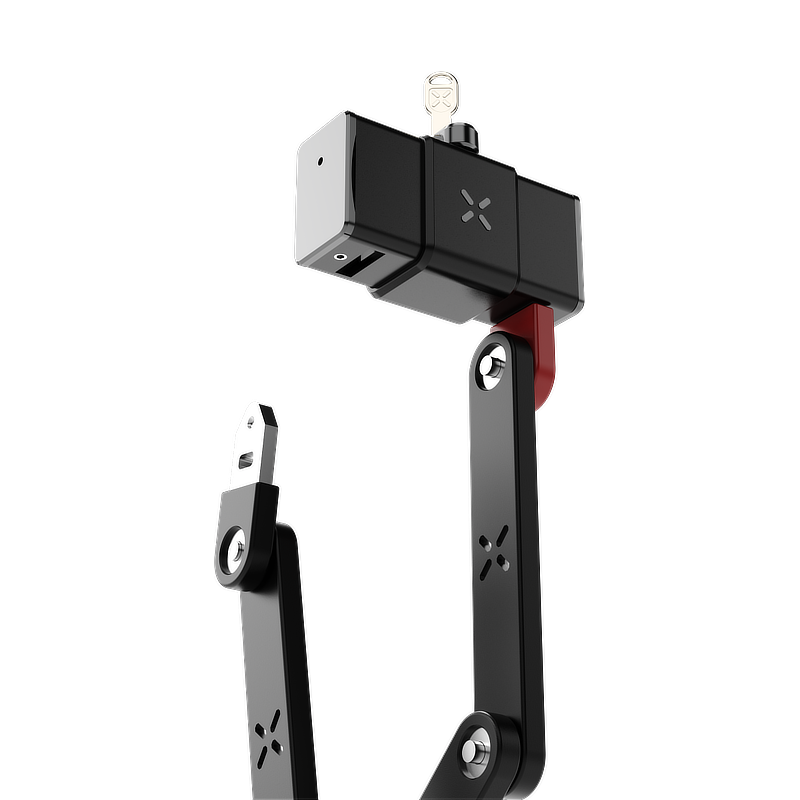
2. Release the folding arm: Pull out the unanchored end of the folding arm from the smart lock body.
Step 3: Activating the Smart Device
1. Unlock the battery compartment:
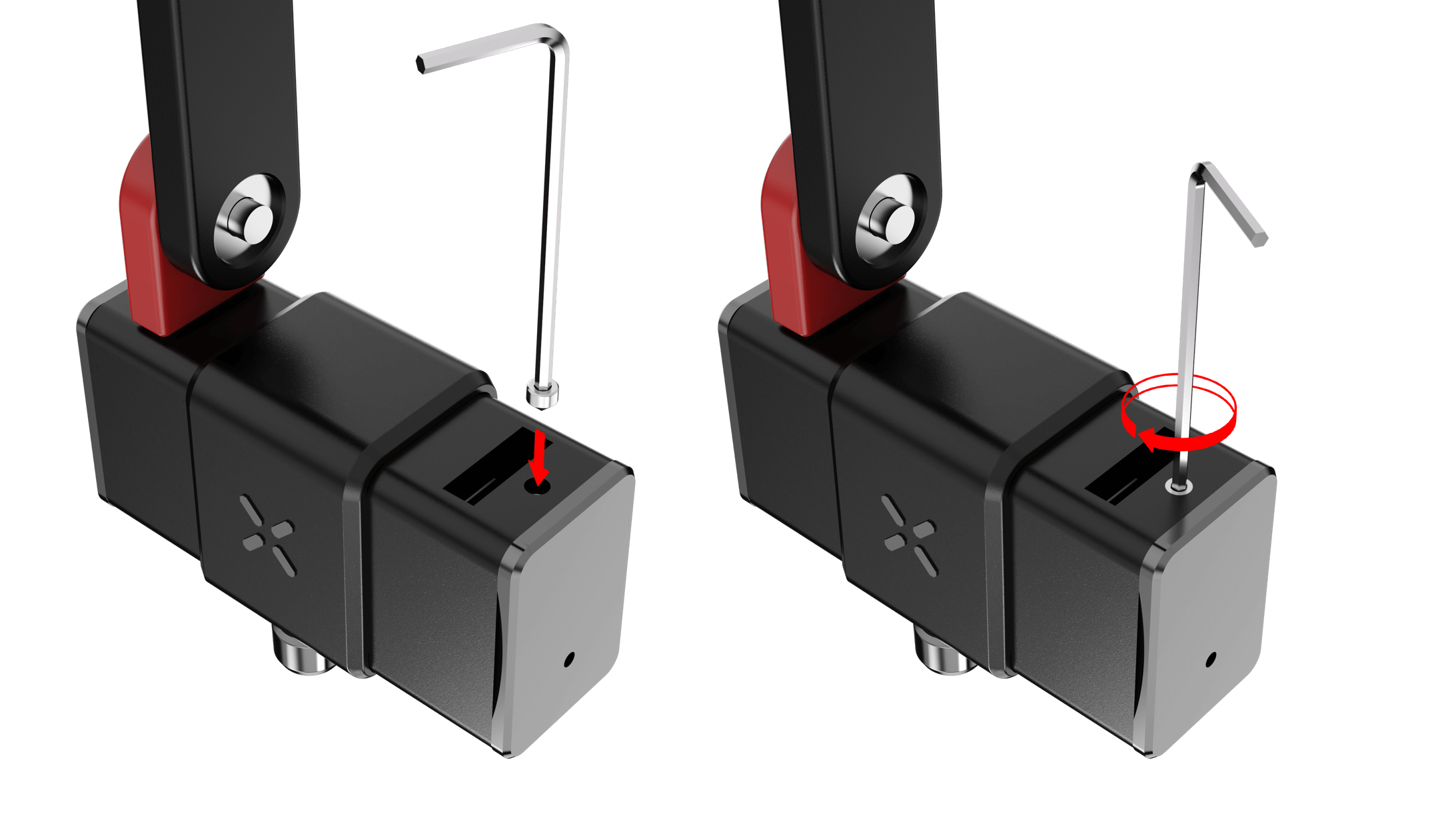
- Remove the Allen screw: Insert an Allen key and turn it counterclockwise until the screw is fully removed.
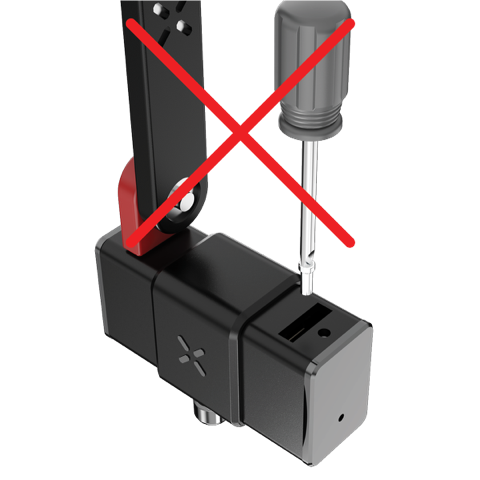
- Loosen the captive screw: After removing the first screw, locate the second screw at the bottom of the lock where the folding arm was removed. Use a Phillips screwdriver to loosen the captive screw without fully removing it.
Note: Either screw can be loosened first.
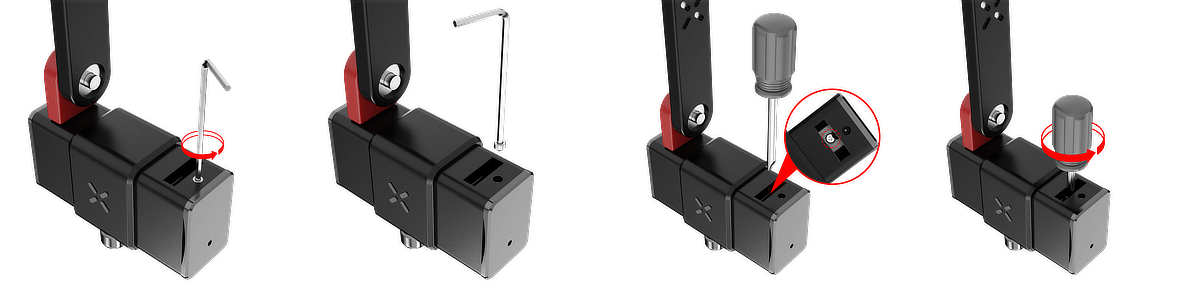
Note: Captive screw. Do not attempt to remove it.
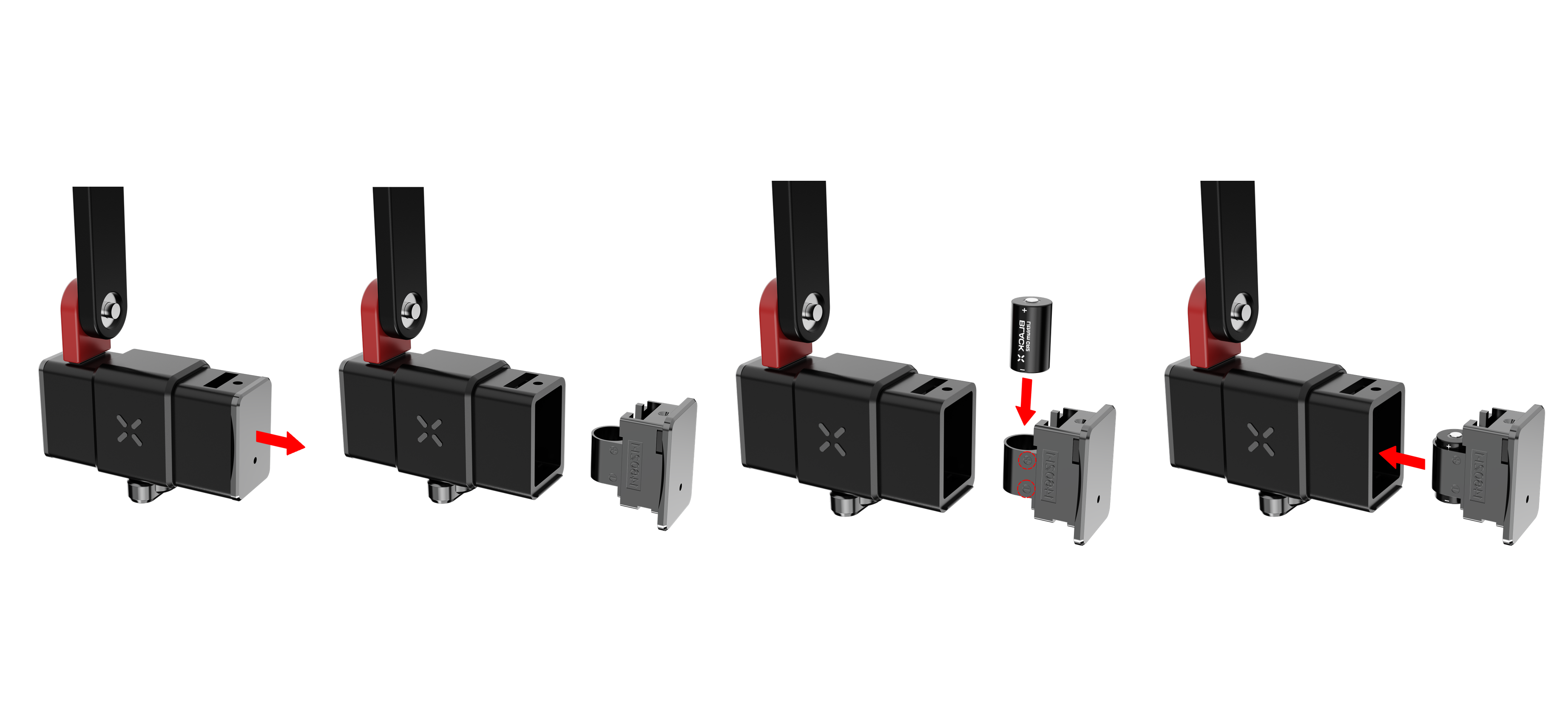
2. Remove the top cover: Grip the outer edge and pull the internal battery compartment straight out from the smart device.
3. Insert the CR2 battery: Align the “+” end of the battery with the “+” marking in the compartment, then slide it fully into place.
4. Reinstall the battery compartment: Position the battery compartment back into its original recess, ensuring it sits flush.
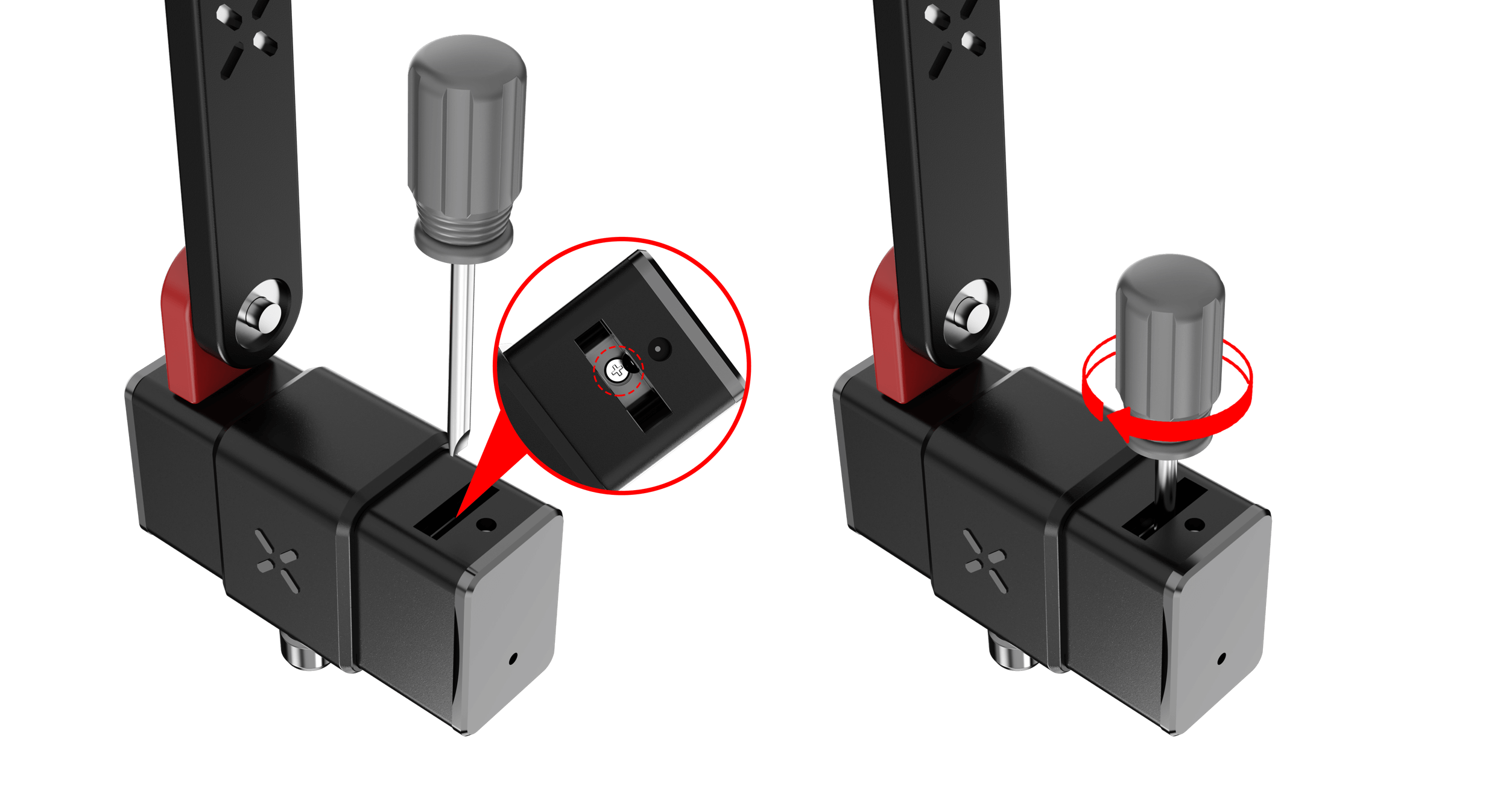
5. Tighten the captive screw: Use a Phillips screwdriver to tighten the captive screw clockwise until the battery compartment is secure.
6. Reinsert the Allen screw: Insert the Allen screw into the designated hole and turn clockwise until fully tightened.
7. Reinsert the folding arm: Align the unanchored end of the folding arm with the slot at the base of the smart lock, then push it firmly into place.
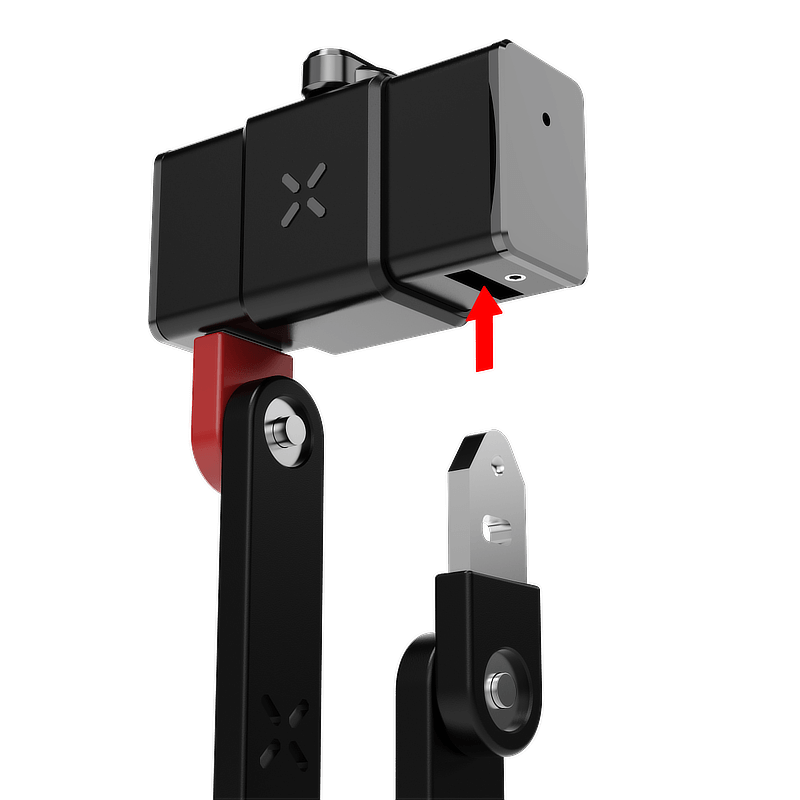
8. Lock the device: Once the folding arm is in place, turn the knob counterclockwise to lock it securely.
Note: Always ensure the folding arm clicks firmly into the locked position.
Step 4: Pairing the Lock with BLACK X App


Open the app and create your BLACK X account before beginning installation.
Ensure your phone’s Bluetooth and Wi-Fi are enabled before attempting to pair.
- Open the BLACK X App.
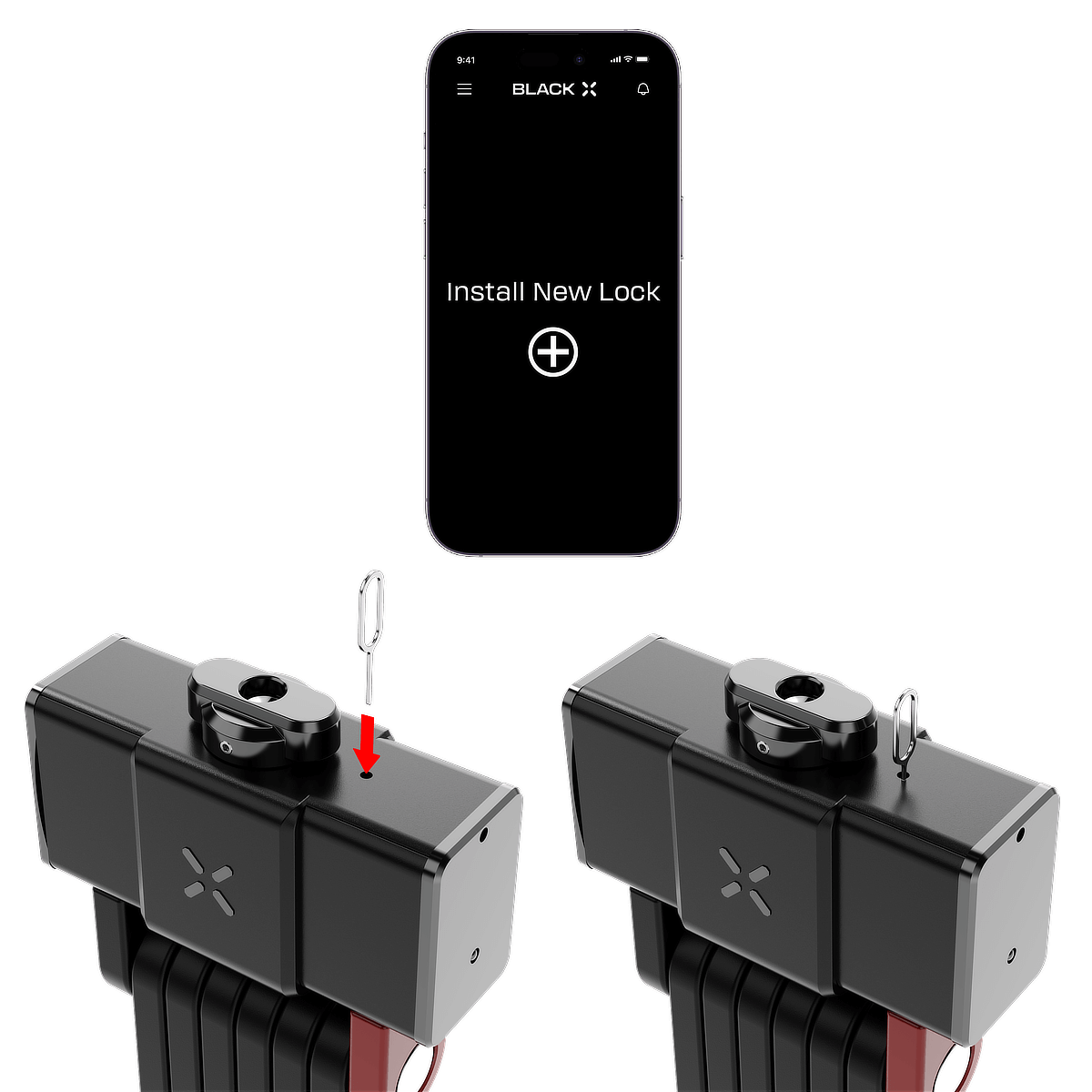
- click on ‘install a new lock’.
- Name your lock or select “Bike Lock” from the pre-named list below, and assign it to a home.
- While in “Discovering Nearby Locks” mode in the BLACK X App, insert the pairing tool into the pairing button recess located on the underside of the smart lock device and press firmly to start pairing.
- When the correct lock appears in the pop-up, tap “Connect” to proceed.
- Congratulations! You’ve successfully connected your first lock.
Step 5: Test Functionality
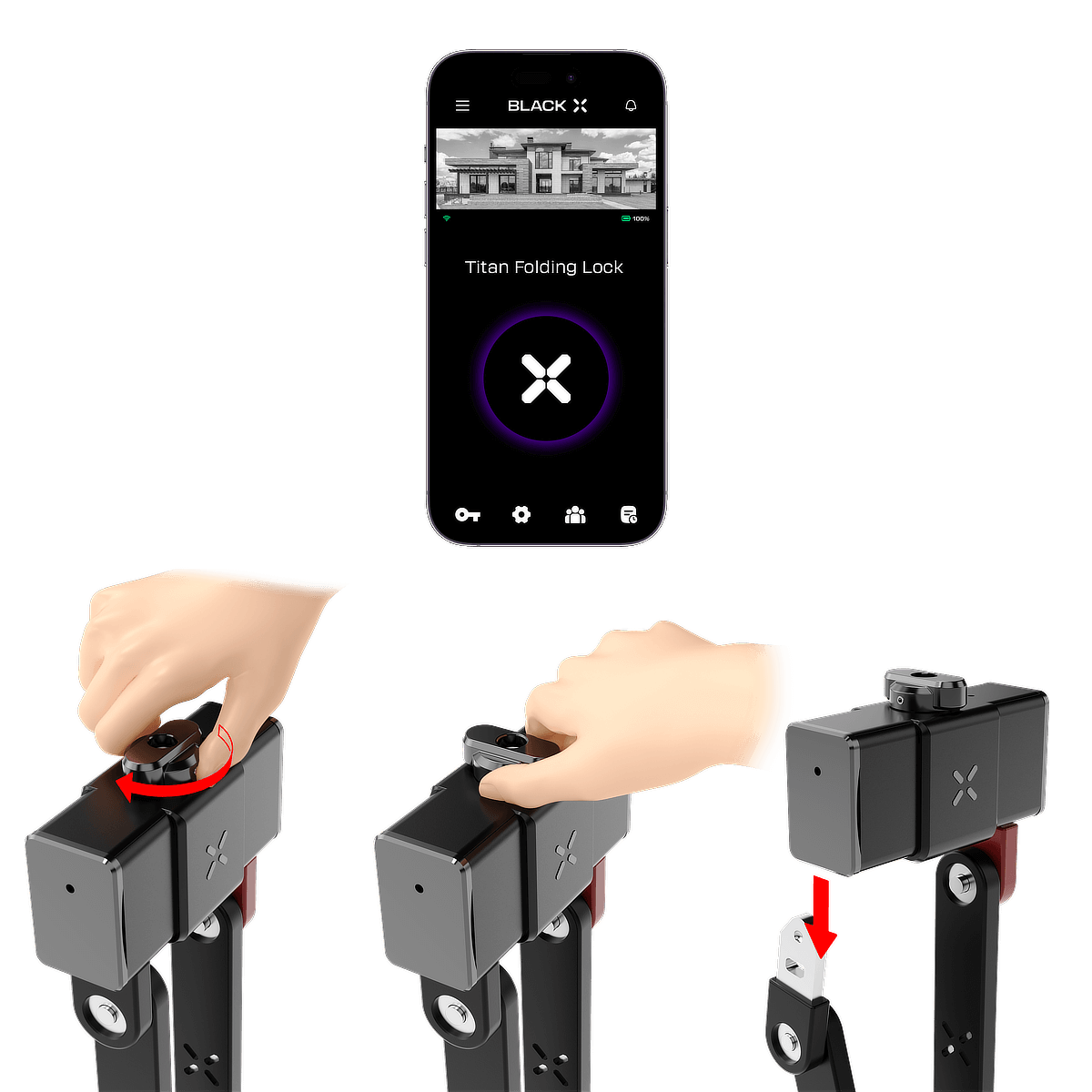
1. Open the BLACK X app and tap the Unlock button.
2. Within 6 seconds, turn the knob clockwise to unlock the lock.
3. Confirm that the lock opens smoothly.
4. Lock the Lock: Ensure the folding arm is fully and correctly inserted into the lock body. Then, turn the knob counterclockwise to lock the mechanism securely.
Mounting bracket options
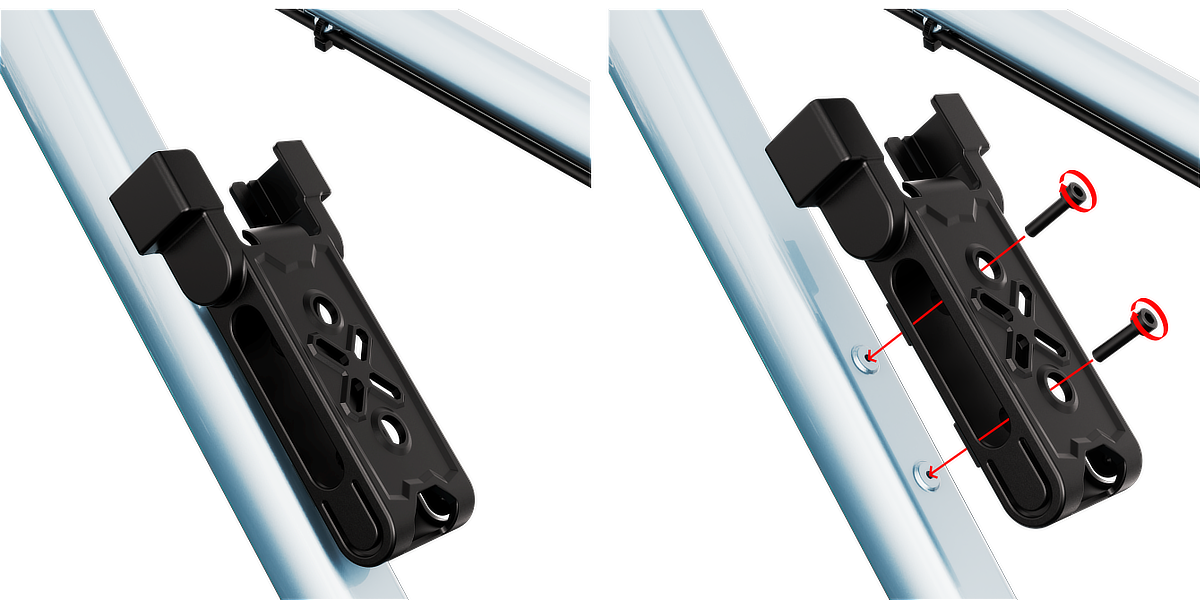
Option 1: Bolt Mounting (Bottle Cage Holes)
- Align the holes on the back of the bracket with the bottle cage mounting holes on the bike frame.
- Use the included bolts to fasten the bracket securely.
- Tighten the bolts firmly using a 5mm Allen key until the bracket is stable and sits flush against the frame.
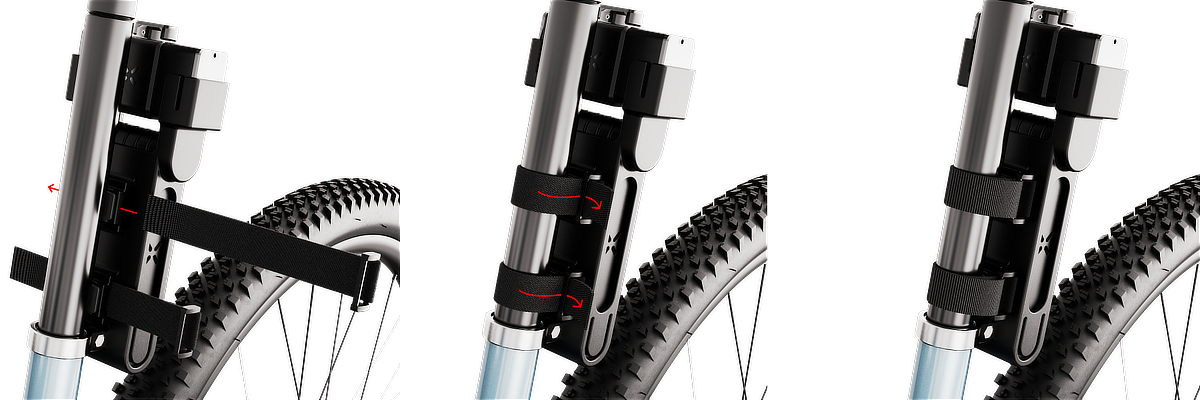
Option 2: Strap Mounting (Seat Post or Frame Tube)
- Position the bracket on the seat post or any suitable frame tube.
- Wrap the Velcro straps around both the bracket and the tube.
- Pull the straps tight to secure the bracket in place and prevent movement while riding.
Optional - Pairing xKey for Additional Unlocking Method
1. From the main menu, select your lock and tap the settings icon .
2. Select “xKey remote” and then tap “Add xKey”.
3. Choose the relevant period for authorized access: Timed, Unlimited, or Recurring.
4. Enter the authorized user’s details (first name, last name, and the relevant period, if applicable), then select Continue.
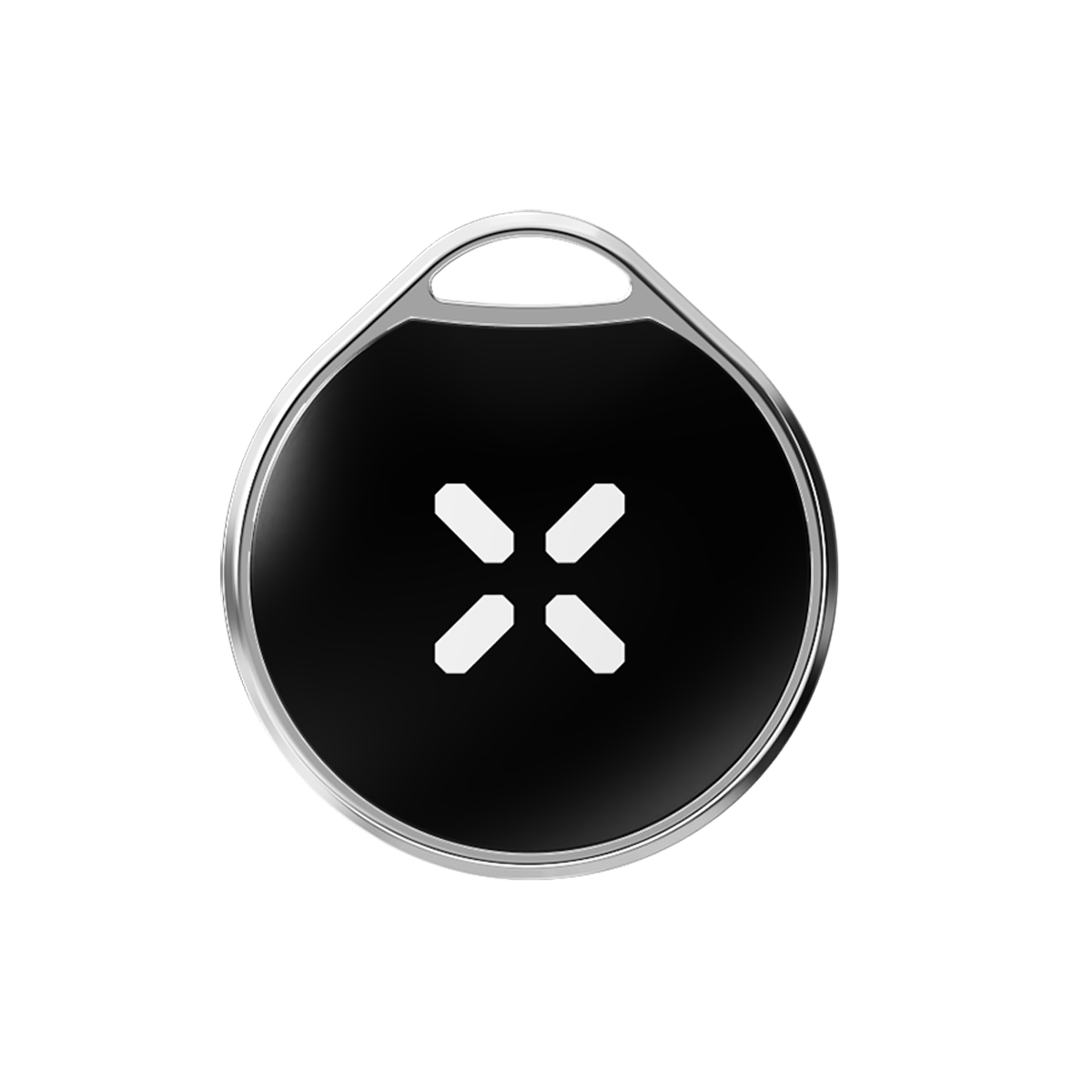
5. Activate the BLACK X xKey by pressing and holding the unlock button for 5 seconds.
6. Select the relevant xKey from the list.
7. Congratulations! You have successfully paired your BLACK X xKey.
Using the xKey:
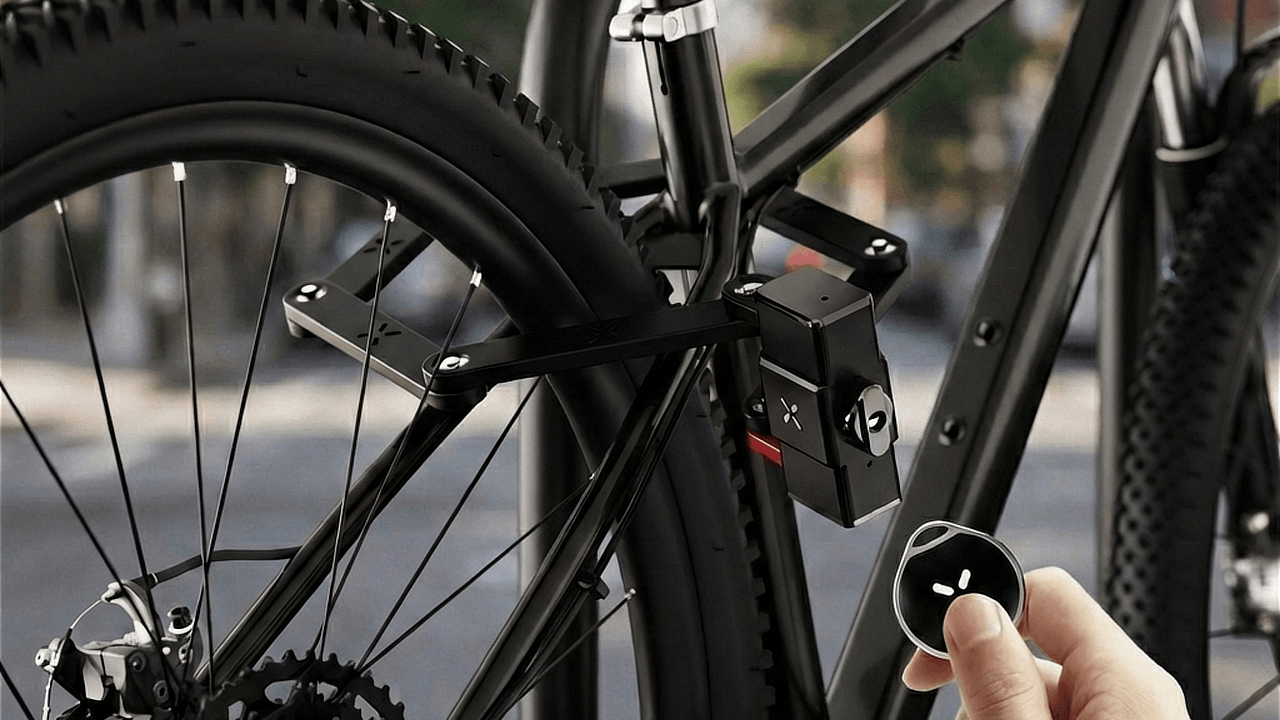
To unlock the lock with the xKey, simply press the button on the xKey within a 2-meter (6 ft) range. The lock will engage the unlock function, just turn the knob clockwise and remove the folding arm.
Note: The xKey is only used for unlocking. Ensure the folding arm is fully and correctly inserted into the lock body. Then, turn the knob counterclockwise to lock the mechanism securely.
Mechanical Key Unlocking Method
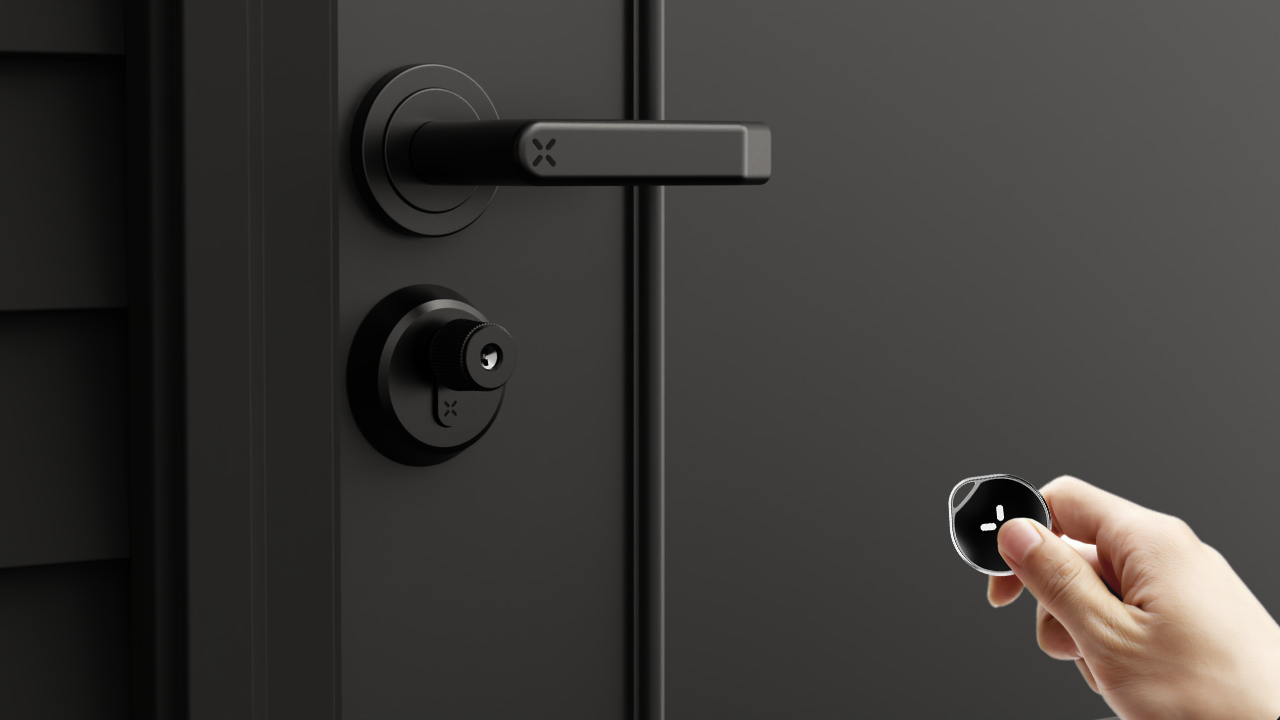
In addition to smart access via the BLACK X app or the xKey, the lock can also be operated manually using the mechanical key when preferred or required.
1. Insert the physical key into the cylinder and turn it clockwise.
2. Once engaged, rotate the knob clockwise to unlock manually.
Looking for more?
Our assistant can help refine your search, or you can reach our support team directly.