FAQ - Titan smart U-Lock
Have questions about your BLACK X Smart U-Lock? This FAQ section covers the most common topics, including daily use, access methods, and general operation, helping you quickly find the information you need.
General Information
What is a BLACK X Smart U-Lock?
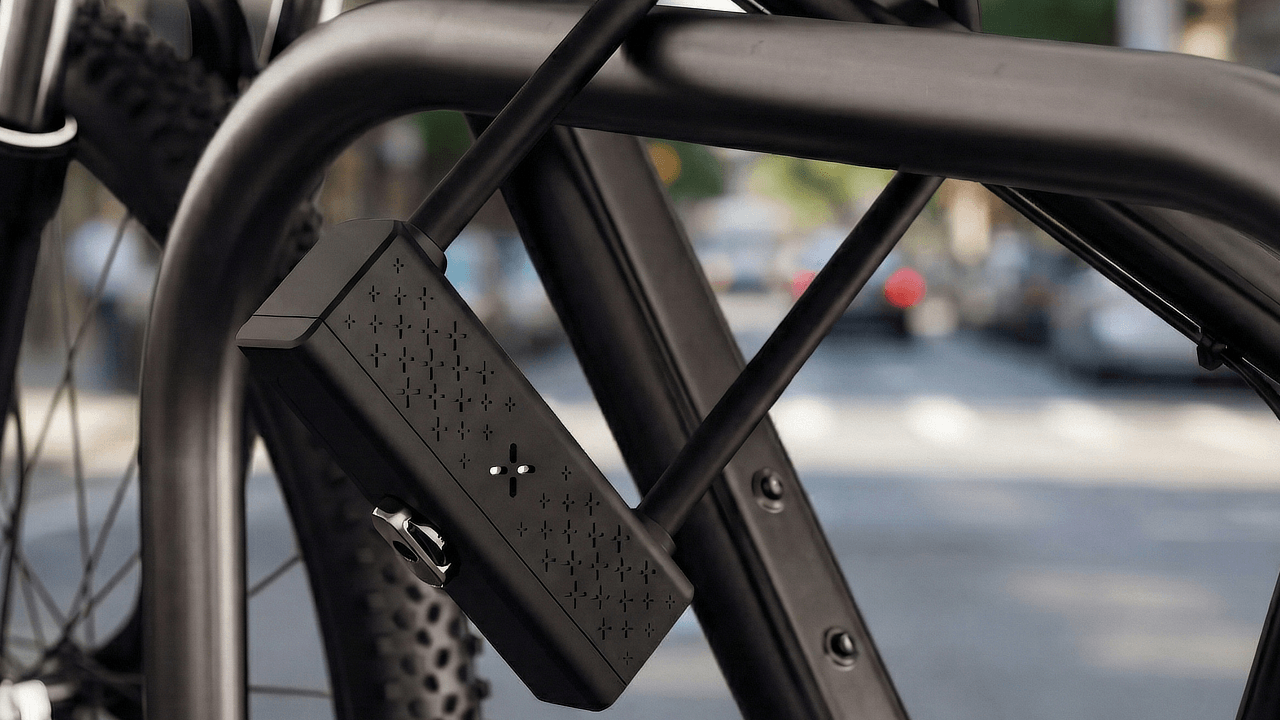
A BLACK X Smart U-Lock combines reinforced mechanical security with smart access control.
The lock can be operated using the BLACK X mobile app, the optional xKey remote, or the mechanical key.
Access & Usage
How does the smart unlocking feature work?
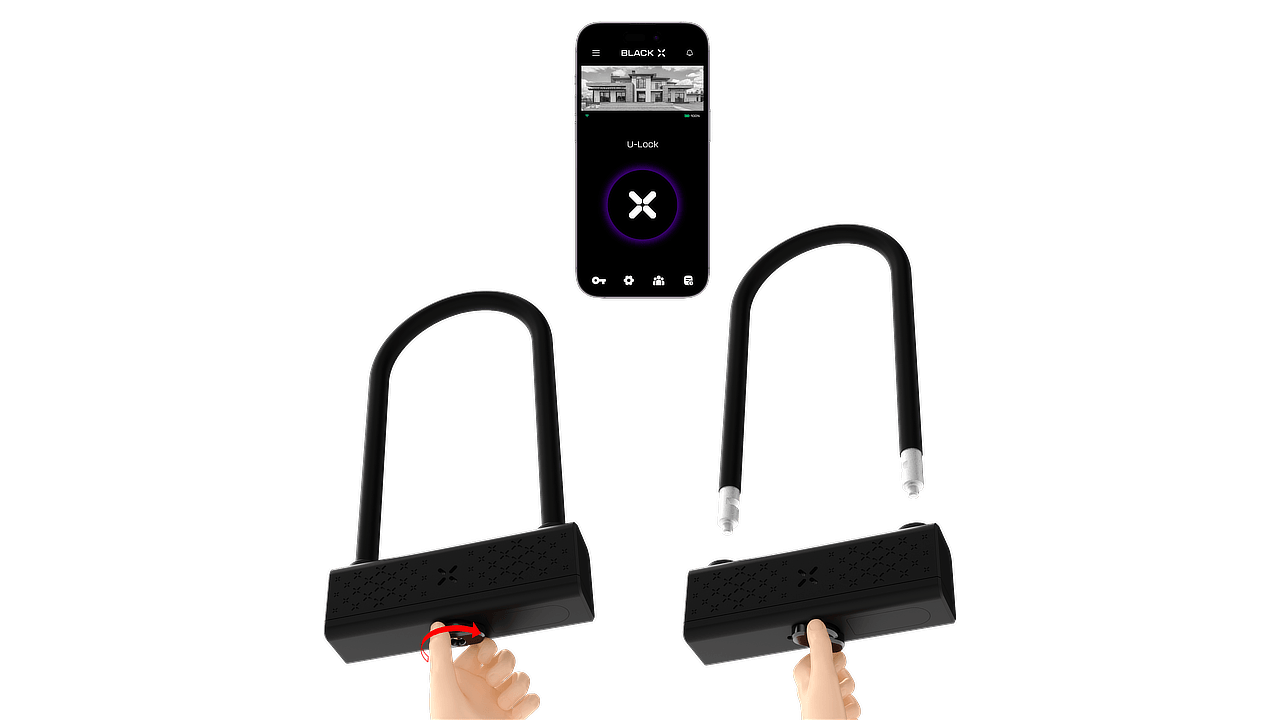
When an unlock command is sent from the BLACK X app or the xKey remote, the lock activates the unlocking mechanism.
To complete the process, turn the knob clockwise and remove the U-shackle.
Can the lock still be opened without the app?
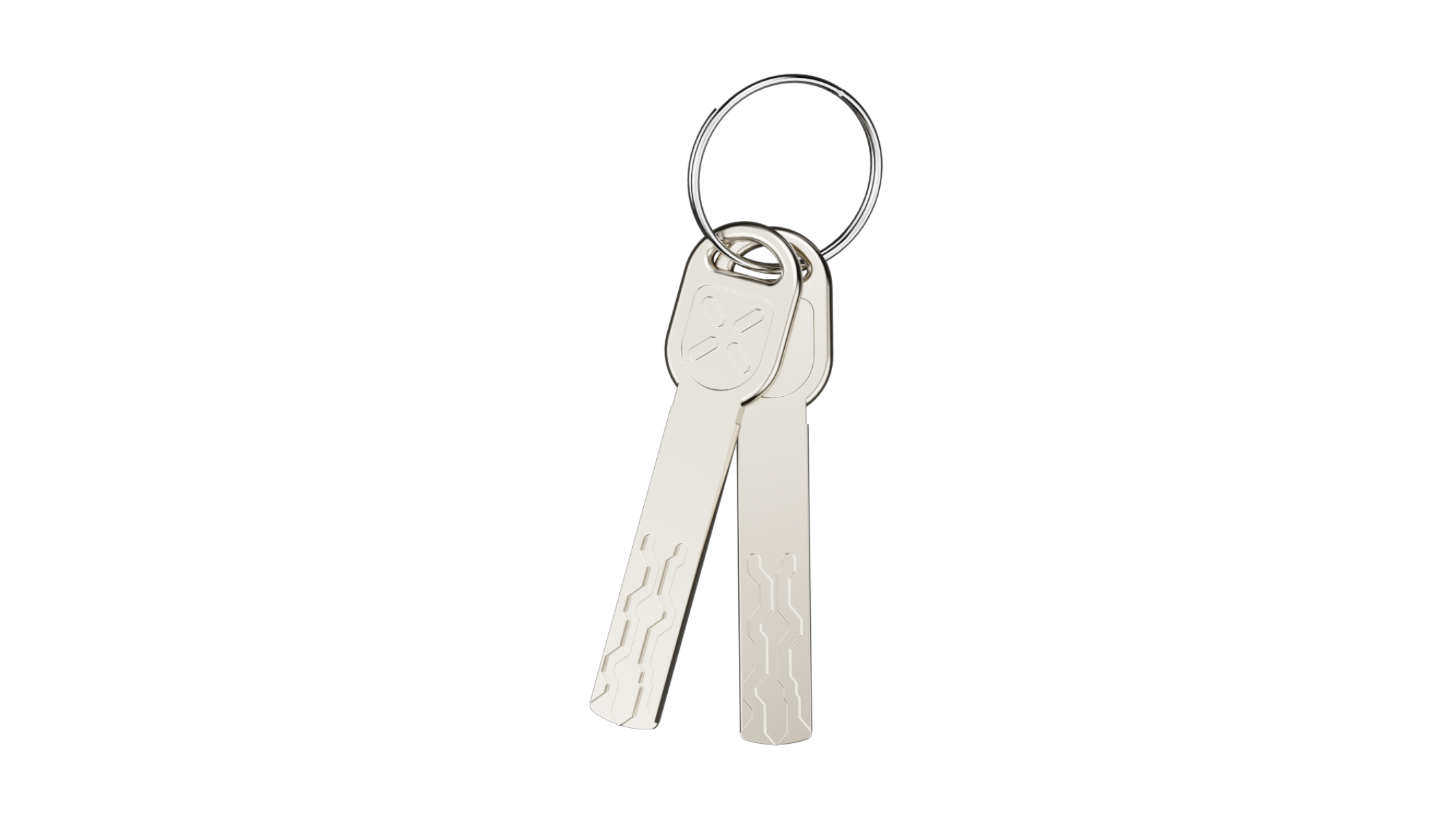
Yes. The lock can also be opened using the xKey remote or the mechanical key.
To unlock with the xKey, press the button on the xKey within approximately 2 meters of the lock, then turn the knob clockwise and remove the U-shackle.
To unlock manually, insert the mechanical key into the cylinder, turn it clockwise, and then rotate the knob clockwise to unlock the lock.
Setup & Activation
Do I need the BLACK X App to set up the lock?
Yes. Initial setup and pairing are performed through the BLACK X App.
How do I pair the lock with the BLACK X app?


Download the app and create your BLACK X account before beginning installation.
Ensure your phone’s Bluetooth and Wi-Fi are enabled before attempting to pair.
- Open the BLACK X App.
- click on ‘install a new lock’.
- Name your lock or select “Bike Lock” from the pre-named list below, and assign it to a home.
- While in “Discovering Nearby Locks” mode in the BLACK X App, insert the pairing tool into the pairing button recess located on the underside of the smart lock device and press firmly to start pairing.
- When the correct lock appears in the pop-up, tap “Connect” to proceed.
- Congratulations! You’ve successfully connected your first lock.
Accessories
What is the xKey and how does it work?
The xKey is an optional remote unlocking device.
Once paired through the BLACK X app, it allows you to unlock the lock by pressing the button on the xKey while standing within approximately 2 meters of the lock.
After pressing the button, turn the knob clockwise to remove the U-shackle.
App & Connectivity
Where can I find my lock's info?
- Open the BLACK X App.
- Select your lock.
- Tap the Settings (gear) icon.
- Tap Basics.
What you'll find on the Basics screen:
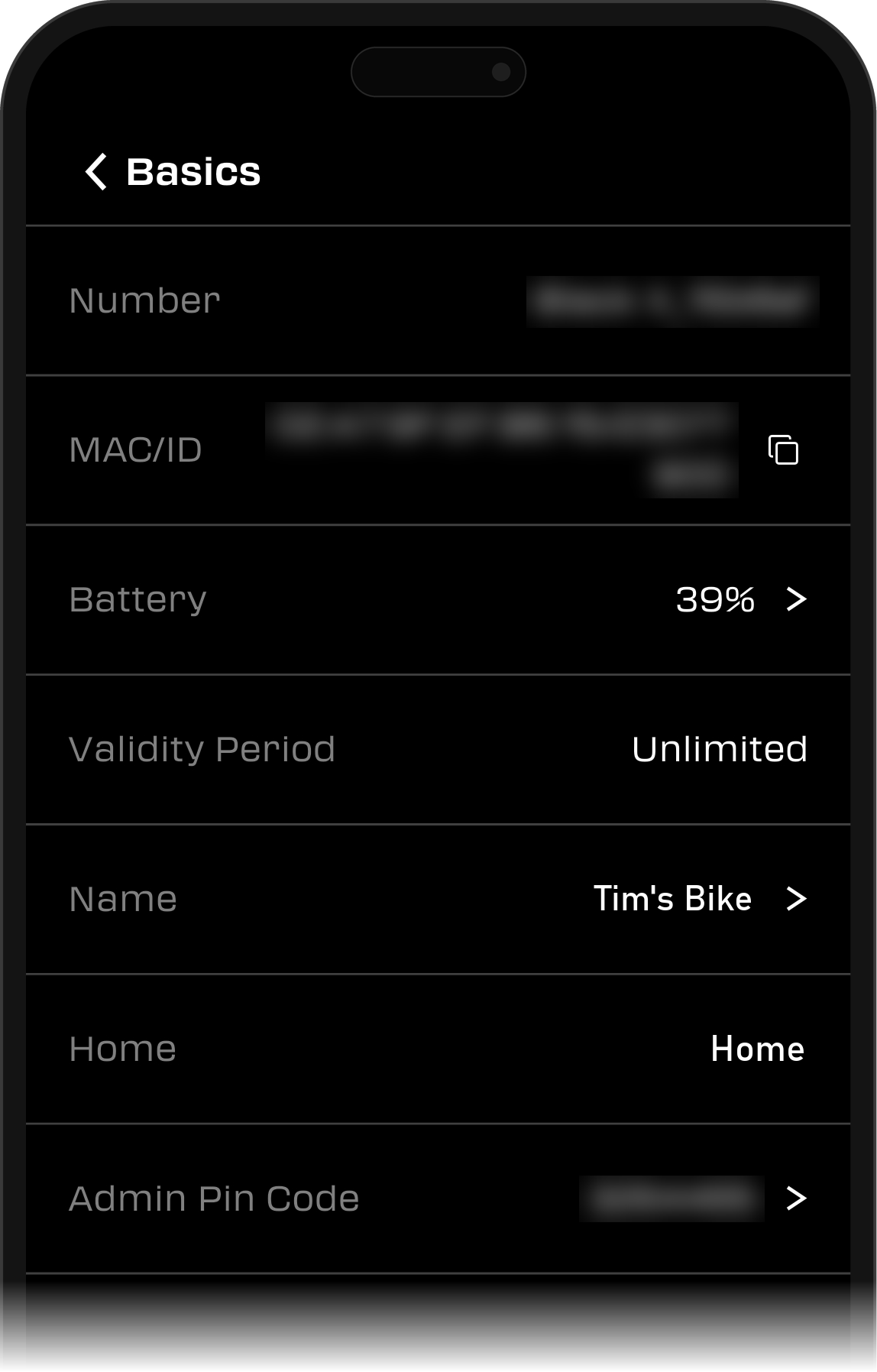
- Number: your lock's device number.
- MAC/ID: your lock's MAC address and ID, shown together. Tap the copy icon to copy them. Our support team uses them to identify your lock.
- Battery: the current battery percentage. Tap the field to update the reading.
- Validity Period: how long your access to this lock is valid, for example "Unlimited".
- Name: the name you gave your lock when you set it up.
- Home: the group your lock belongs to, such as Home or Office. You choose it when you add the lock.
- Admin Pin Code: your lock's admin PIN code.
If our support team asks for your lock's details, copy the MAC/ID, or take a screenshot of the Basics screen and send it to us.
Good to know: you can also see your lock's battery percentage on the app's main screen, next to the lock name.
Battery & Power
What type of battery does the lock use?
The BLACK X Smart U-Lock uses a CR2 battery.
The battery powers the smart functionality of the lock.
Troubleshooting & Support
Running into an issue with your Smart U-Lock? Check out the related articles below for step-by-step troubleshooting, or contact BLACK X Support.
Looking for more?
Our assistant can help refine your search, or you can reach our support team directly.