Troubleshooting Guide for Titan Smart U-Lock models
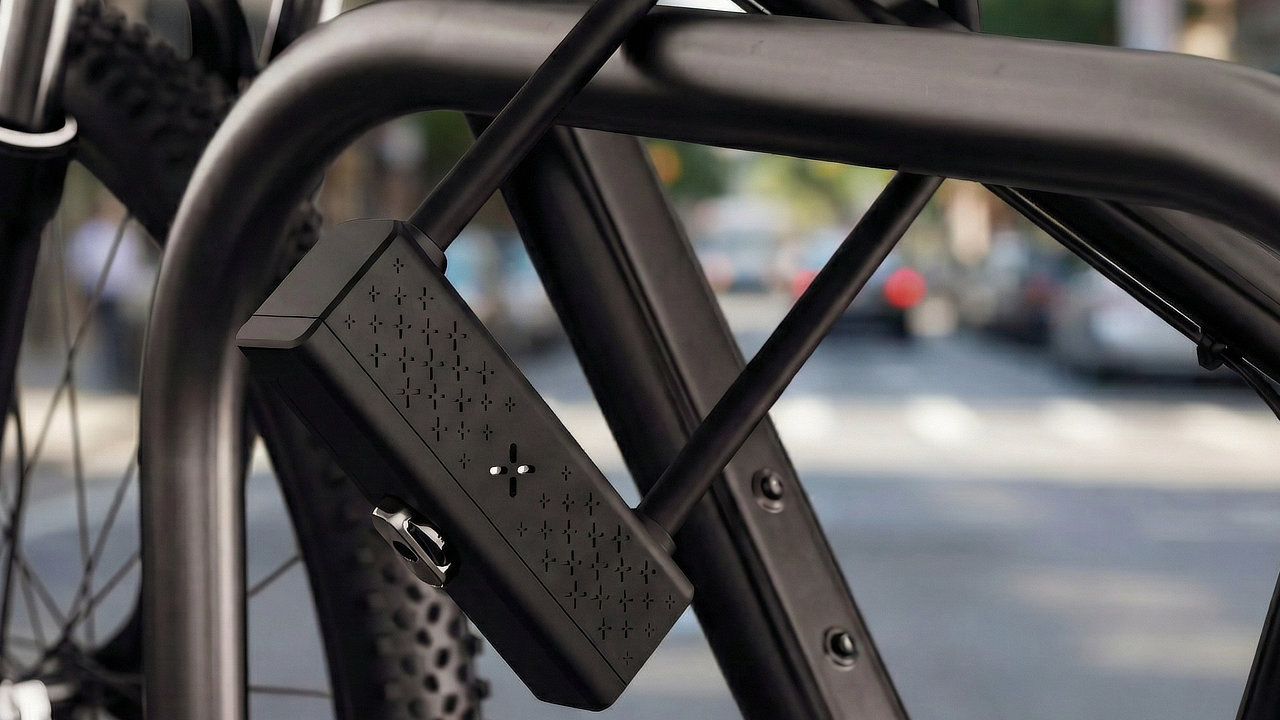
Having trouble with your BLACK X Smart U-Lock? This guide covers common situations related to activation, pairing, and daily operation, and provides simple steps to help ensure smooth use.
If something does not work as expected, review the sections below to identify the cause and apply the recommended solution.
For full installation instructions, refer to the installation guide.
Activation Issues
Device does not power on after inserting the battery
Possible cause
The battery may not be inserted with the correct orientation.
Solution
Remove the battery compartment and check the battery orientation.
Align the positive side of the CR2 battery with the positive marking inside the compartment.
Reinsert the battery compartment and ensure it sits flush before reinstalling the lever assembly.
Lock Operation Issues
U-shackle does not lock securely
Possible cause
The U-shackle may not be fully inserted into the lock housing.
Solution
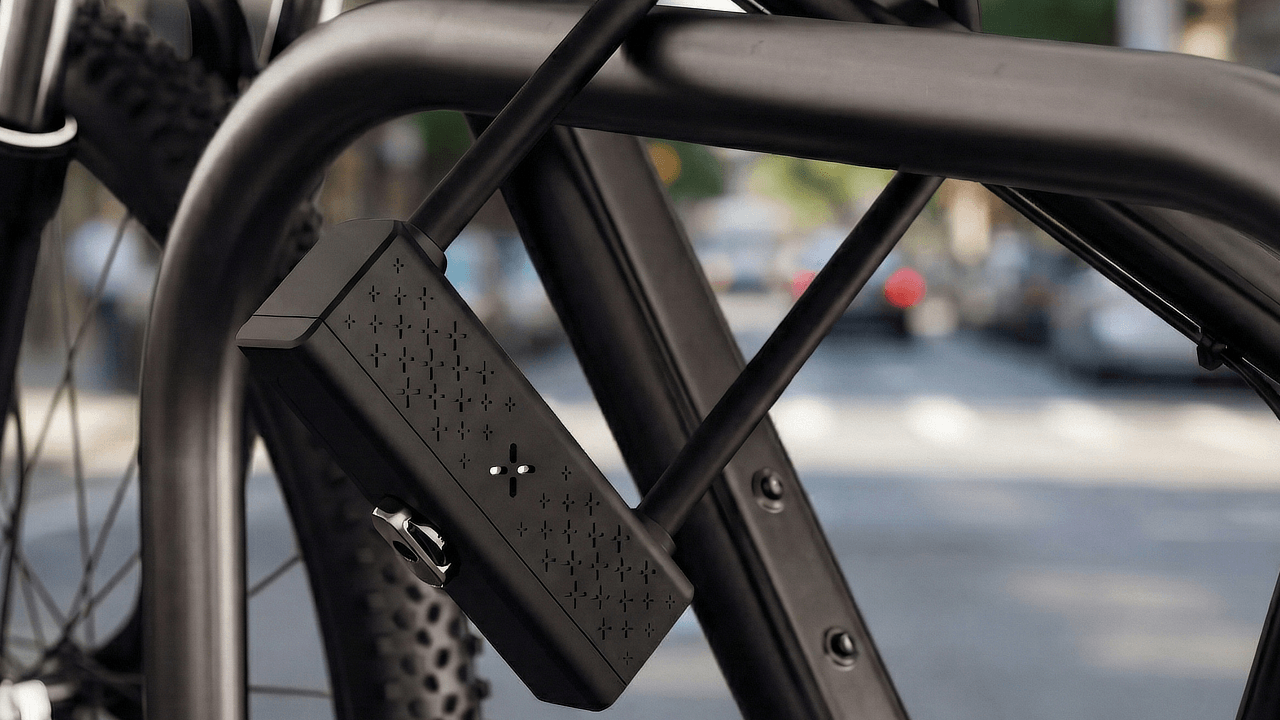
Align both ends of the U-shackle with the corresponding holes in the lock body and push it fully into place.
Turn the knob counterclockwise to secure the locking mechanism.
Ensure the U-shackle clicks firmly into the locked position.
Lock does not unlock after sending the unlock command
Possible cause
The knob may not have been turned within the required time window after the unlock command.
Solution
Open the BLACK X app and tap the Unlock button.
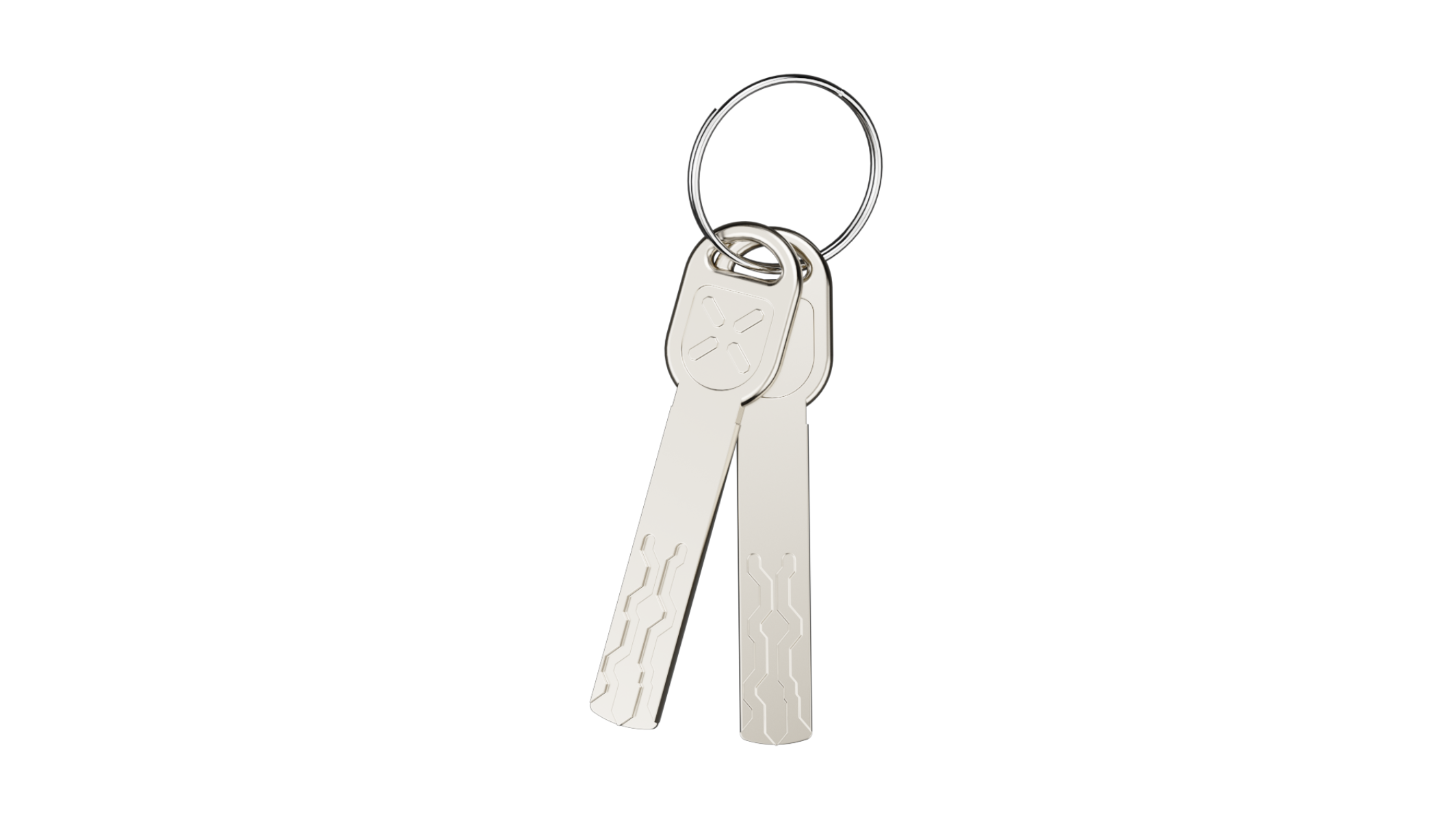
Within 6 seconds, turn the knob clockwise to release the U-shackle and open the lock.
App & Connectivity Issues
Lock does not appear in the BLACK X app during pairing
Possible cause
Bluetooth may not be enabled or the pairing button may not have been activated.
Solution
Ensure Bluetooth is enabled on your smartphone.
Open the BLACK X app and select Install New Lock.
While the app is searching for nearby locks, use the pairing tool to press the pairing button on the lock.
When the correct lock appears, tap Connect.
xKey does not unlock the lock
Possible cause
The xKey may not be activated or paired correctly.
Solution
Press and hold the unlock button on the xKey for 5 seconds to activate it.
In the BLACK X app, open the lock settings and select xKey remote, then tap Add xKey.
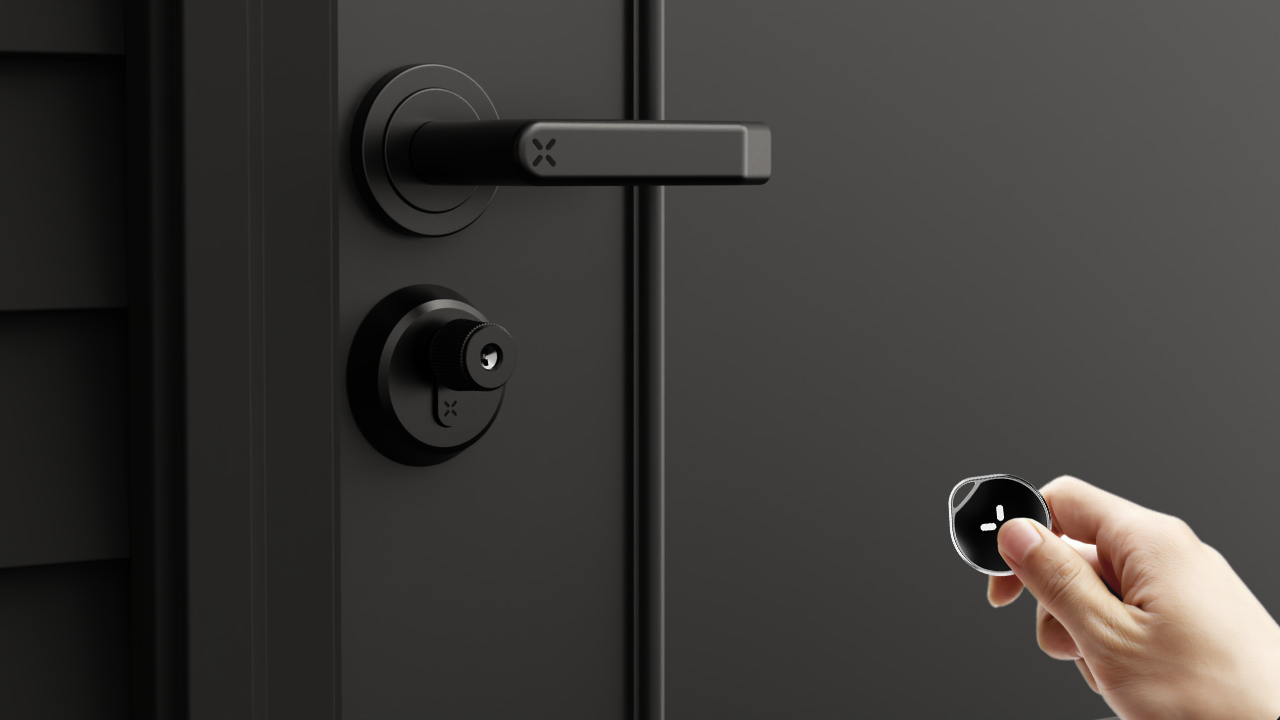
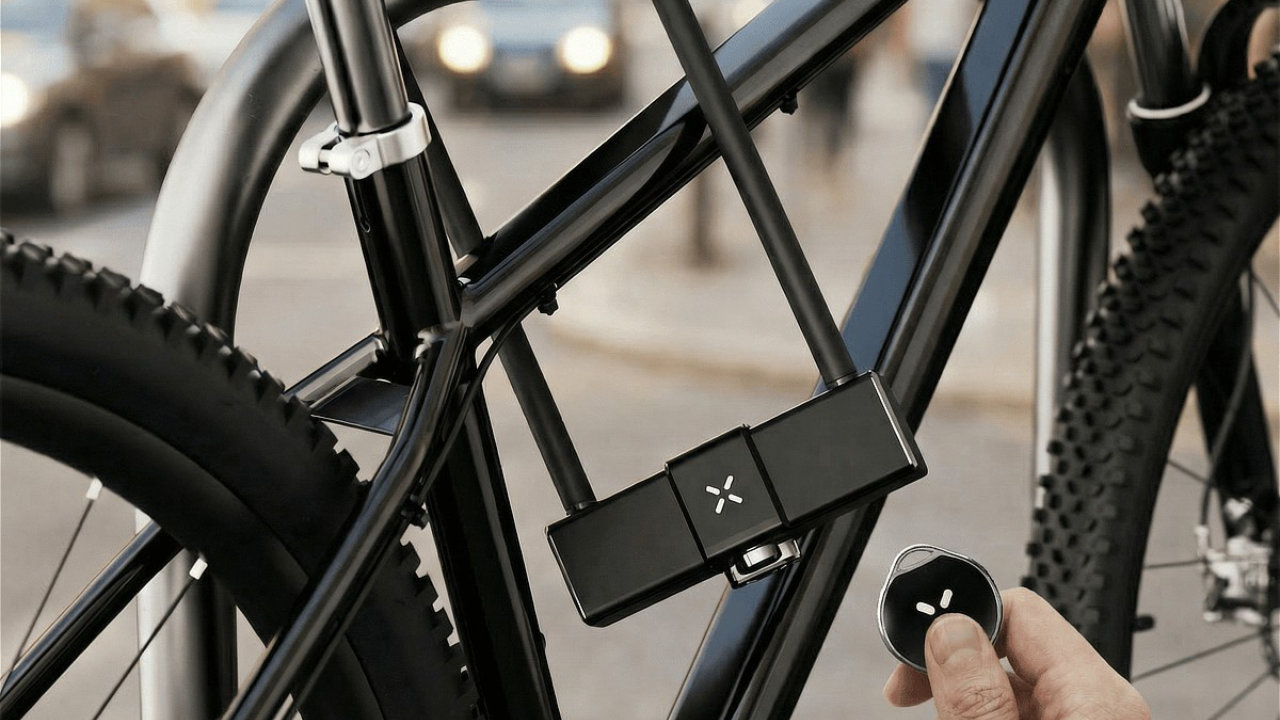
Once paired, press the button on the xKey within approximately 2 meters of the lock and turn the knob clockwise to open the lock.
Looking for more?
Our assistant can help refine your search, or you can reach our support team directly.