FAQ - BLACK X App
Have questions about the BLACK X App? This section covers setup, access management, connectivity, and everyday use to help you get the most out of your smart lock.
Account & Device Access
What is the BLACK X App used for?
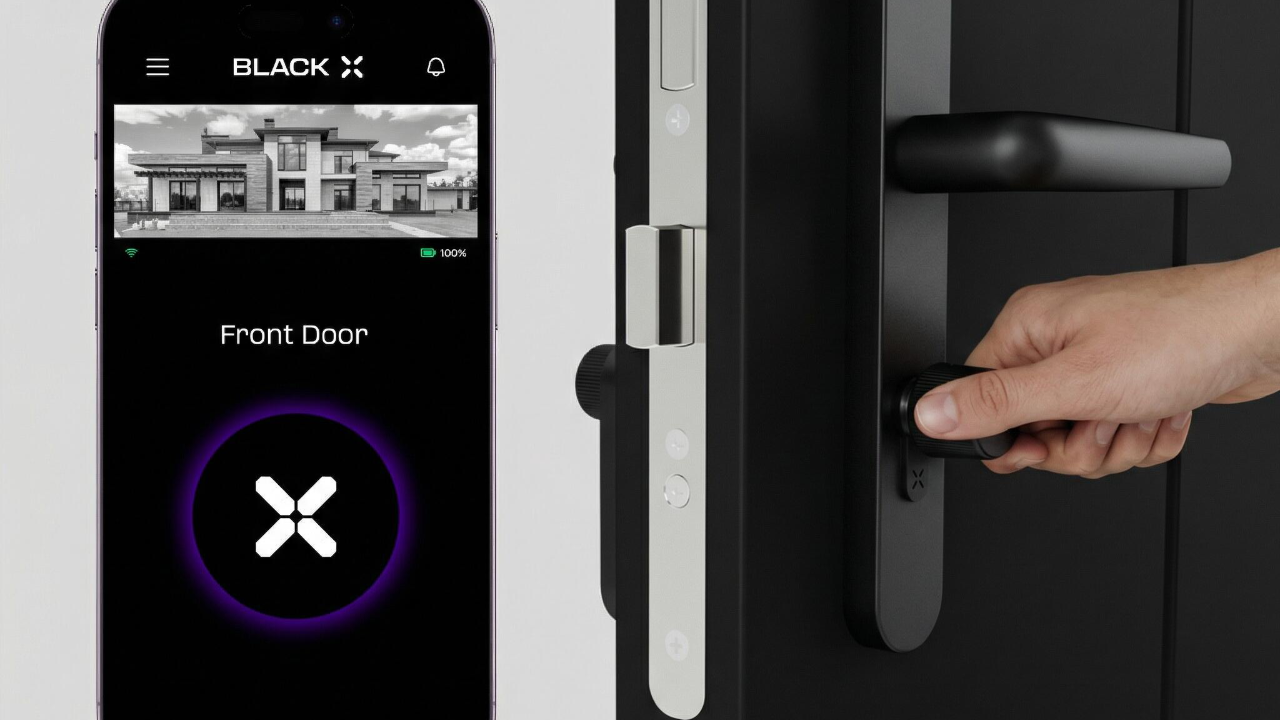
The BLACK X App is the central control hub for your smart lock.
It is used to set up, manage, and control all access settings and connected devices in one place.
Using the app, you can:
- Register your account and set up your lock
- Connect and manage multiple locks
- Lock and unlock your door
- Grant or revoke access
- Manage users and permissions
- View access history
- Configure devices such as xPad, xKey, and Wi-Fi Bridge (if purchased)
Do I need the app to set up the lock?
Yes. Initial setup and registration are performed through the BLACK X App.
The app is required to:
- Create your account
- Connect the lock
- Configure access and settings
- Set up additional devices such as xPad, xKey, and Wi-Fi Bridge (if purchased).
Do I need the app for daily use?
Once configured, the lock can also be operated using other access methods such as:
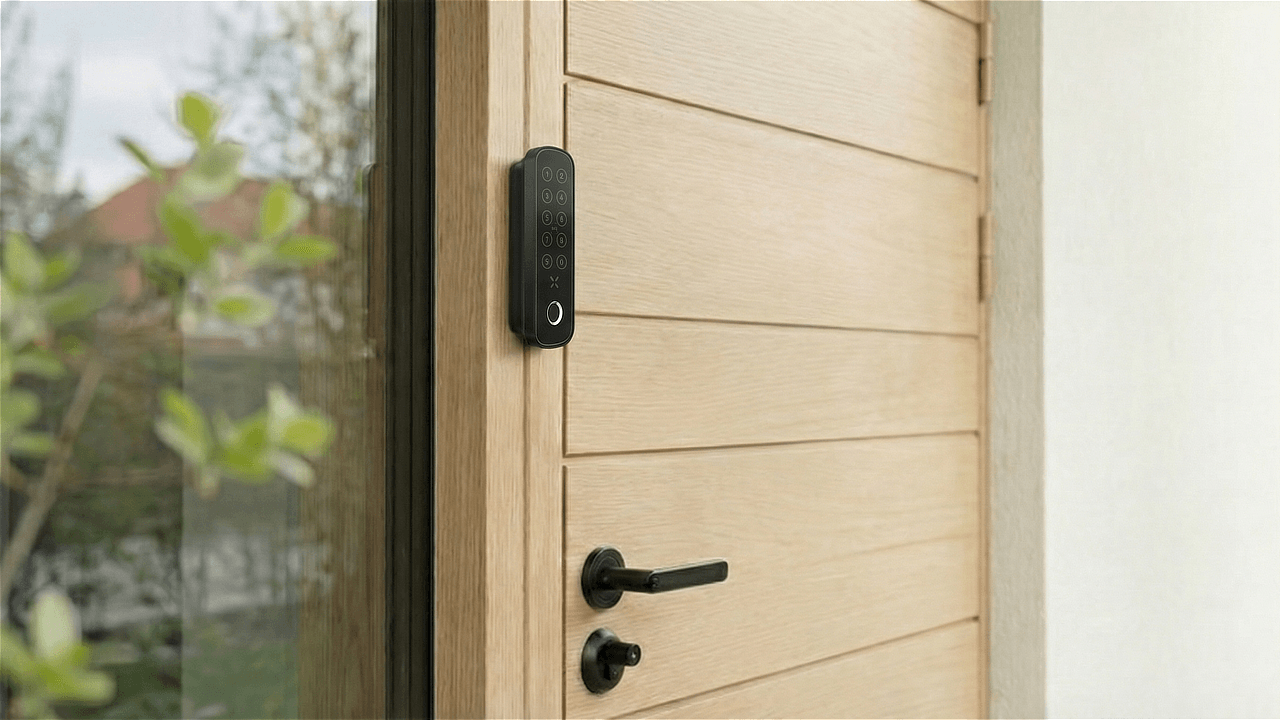
- Keypad codes (xPad / xPad+) (if purchased)
- xKey remote (if purchased)
- Mechanical key
What happens if I lose my phone?
Since your phone is used to unlock your smart lock, it is recommended to enable a screen lock (PIN, fingerprint, or facial recognition) on your device.
If your phone is lost:
- Log in to the BLACK X App from another device
- The previous device will automatically be logged out
- Update your password for added security
If I change phones, will my permissions be retained?
Yes. All permissions and settings are linked to your account and will automatically sync when you log in on a new device.
How many smart locks can I manage in the BLACK X App?
There is no limit to the number of smart locks you can manage from a single BLACK X App account.
You can easily manage multiple locks across:
- Different doors within the same property
- Multiple properties or locations
- Shared access for family members, guests, or users
All locks are managed centrally within your account.
Language
Can I use the BLACK X App in my language?
Yes. The BLACK X App is available in 32 languages: English, Arabic, Bulgarian, Chinese (Simplified), Chinese (Traditional, Taiwan), Chinese (Traditional, Hong Kong), Czech, Danish, Dutch, Estonian, French, German, Greek, Hebrew, Hungarian, Italian, Japanese, Korean, Lithuanian, Malay, Polish, Portuguese (Portugal), Portuguese (Brazil), Romanian, Russian, Serbian, Slovak, Spanish, Swedish, Turkish, Ukrainian, Vietnamese.
How do I change the app language?
- Open the BLACK X App
- Tap the menu icon (☰) at the top of the screen
- Go to Account Settings
- Tap Language
- Pick your language
- Tap Save
The app switches to the language you choose.
App & Setup
How do I pair the lock with the BLACK X app?


Open the app and create your BLACK X account before beginning installation.
Ensure your phone’s Bluetooth and Wi-Fi are enabled before attempting to pair.
- Download BLACK X App from App store or google play.'
- Open the BLACK X App.
- click on ‘install a new lock’.
- Name Your Lock or choose a description.
- Create a ‘Home’ to associate with your lock.
- Choose the ‘Home’ for your lock.
- While in "Discovering Nearby Locks" mode, use the Allen key to press the connect button on the BLACK X device.
- When a pop-up for the correct lock appears, click "Connect" to proceed.
- Congratulations! You’ve successfully connected your first lock.
Connectivity
Does the lock require internet to work?
No. The lock operates via Bluetooth, allowing you to unlock it locally without an internet connection.
Can I control my lock remotely?
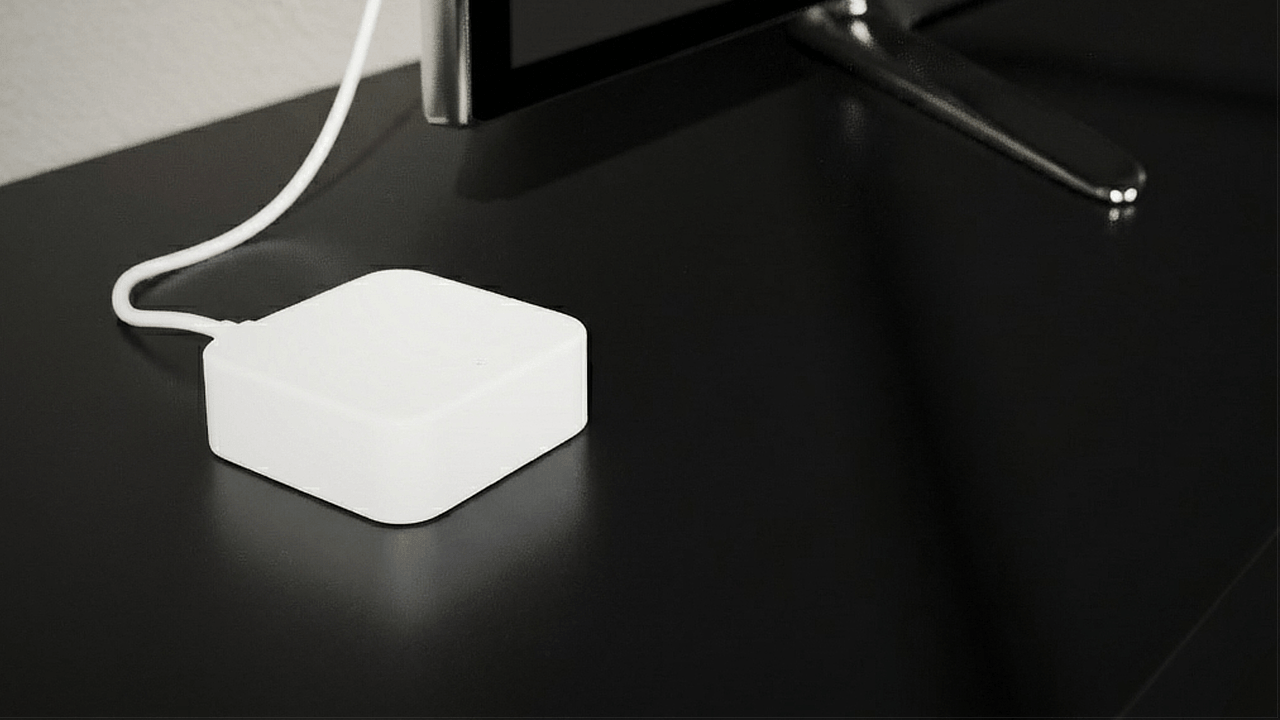
Yes. Remote access is available using the BLACK X Wi-Fi Bridge.
eKey & Access Management
What is an eKey?
An eKey is a digital key that allows you to grant secure access to your smart lock through the BLACK X App, without the need for a physical key.
How do I send an eKey to another user?
- Open the BLACK X App
- Select your lock and tap the "Key" icon
- Tap "Send eKey"
- Choose the time type and fill in the details
- Tap "Send" and select how to deliver the eKey
The recipient must activate the eKey within 24 hours.
Can I create a one-time access key?
Yes. You can generate an eKey for one-time use.
What is the minimum access time for an eKey?
A one-time entrance is the minimum. The key must be used within 24 hours.
Can I view access history for my lock?
Yes. You can view a full access log directly in the BLACK X App.
- Open the app
- Select the relevant lock
- Tap the "History" icon (list symbol) at the bottom right corner
The log includes:
- User or device that operated the lock
- Date and time of each action
- Operation status (lock / unlock)
This allows you to monitor activity and maintain full control over access.
Keypads (xPad / xPad+)
How do I pair an xPad or xPad+?
- Open the app and go to lock settings
- Select "xPad/xPad+ Keypad" and tap "Add"
- Press the pairing button using the ejector tool
- Wait for the keypad to flash
- Tap "Continue" and select the device
- Close the battery cover securely
How many passcodes can I create?
The system supports an unlimited number of passcodes.
Can I delete a specific code without affecting others?
Yes. You can delete individual codes without impacting other users.
Can I create a one-time passcode?
Yes. Select "Generate Passcode" and choose "One-Time Occurrence".
How do I create a passcode?
- Open the BLACK X App
- Go to the Main Menu
- Select "Keypad Code"
- Choose the lock
- Tap "Generate Code"
- Select the desired validity period
- Enter the required details
- Tap "Set a Passcode"
You can send the code via SMS or Email.
Passcode length is automatically determined by the system (typically 6 to 11 digits), or you can create a custom code (4 to 9 digits).
Battery Management
How do I check the battery level of my lock?
Battery percentage is displayed on the main screen next to the lock name. Alerts appear at 10%, 5%, and critical levels.
Smart Home & Remote Access
How do I set up the Wi-Fi Bridge?
- Connect the Wi-Fi Bridge to a power source
- Open the BLACK X App
- Go to the menu and select "Bridges"
- Tap "Add Wi-Fi Bridge"
- Select the displayed bridge
- Enter your WiFi details (2.4 GHz network)
Once setup is complete, you can control your lock remotely.
Additional Information
Can I customize my Home in the app?
- Open the BLACK X App
- Tap the lock associated with your Home
- Tap the Home photo
You can:
- Change the photo using your gallery or camera
- Rename your Home and save
Troubleshooting & Support
Running into an issue with the BLACK X App? Check out the related articles below for step-by-step troubleshooting, or contact BLACK X Support.
Looking for more?
Our assistant can help refine your search, or you can reach our support team directly.