Checking your lock's time
Your BLACK X lock has its own clock, and the times in the lock's history come from it. If those times look wrong, check the lock's time and calibrate it.
Check and calibrate the lock's time
- Open the BLACK X App and select your lock.
- Tap the Settings (gear) icon.
- Scroll down and tap Lock Clock. The screen shows the lock's current date and time.
- If the time on the Lock Clock screen is wrong, tap Calibrate Time to correct the lock's clock.
A wrong lock time can stop a valid passcode or eKey from working.
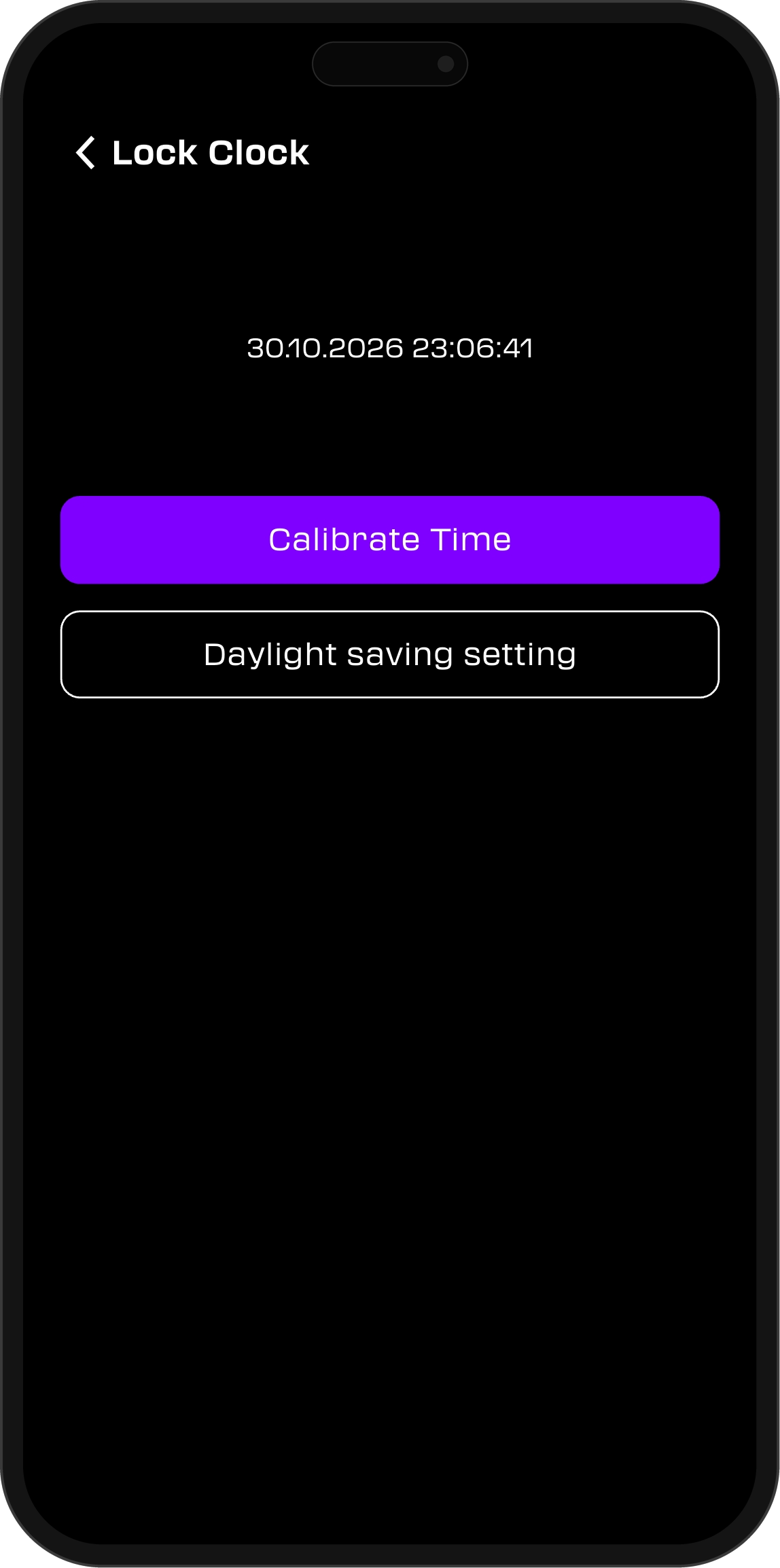
The Lock Clock screen also has a Daylight saving setting button.
Why the times in the history can look wrong
- The lock uses the local time zone that was set when it was installed. The history shows times from the lock's clock, so they're in the lock's time zone.
- Scheduled passcodes work the same way, because the app uses the lock's own time zone. If you're in a different time zone when you create a scheduled code, allow for the time difference when you set the schedule.
To see the history, open the app, select your lock and tap the History icon (list symbol) at the bottom right.
If the times are still wrong after calibrating, contact BLACK X Support.
Related Installation Guides

More Help Articles
Looking for more?
Our assistant can help refine your search, or you can reach our support team directly.